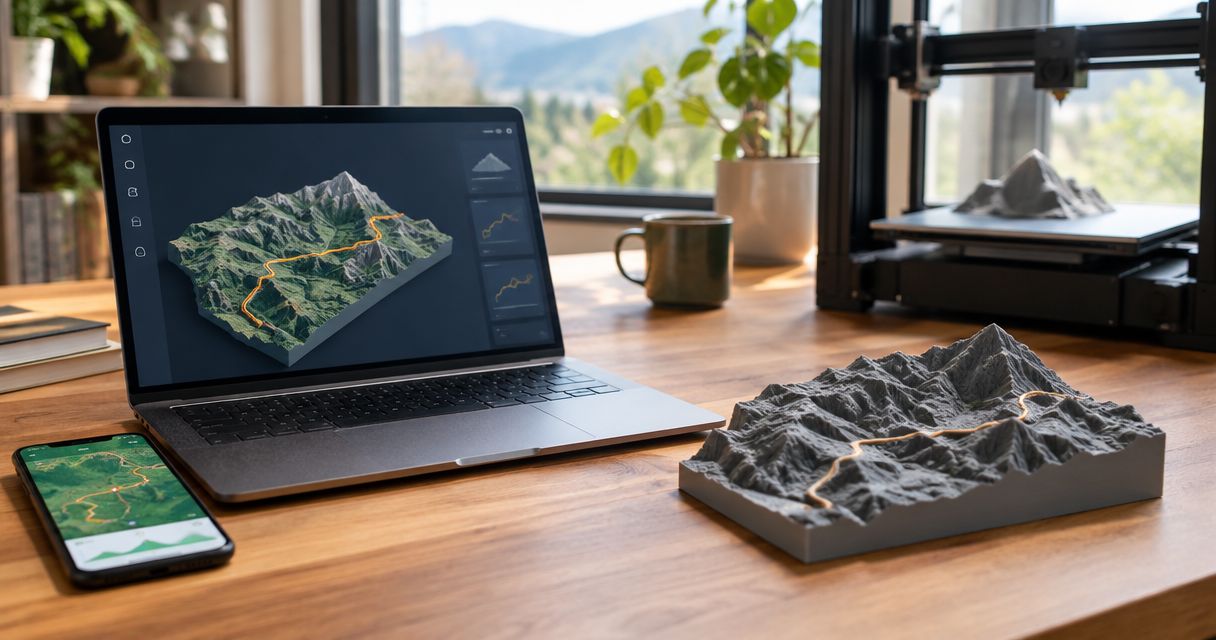
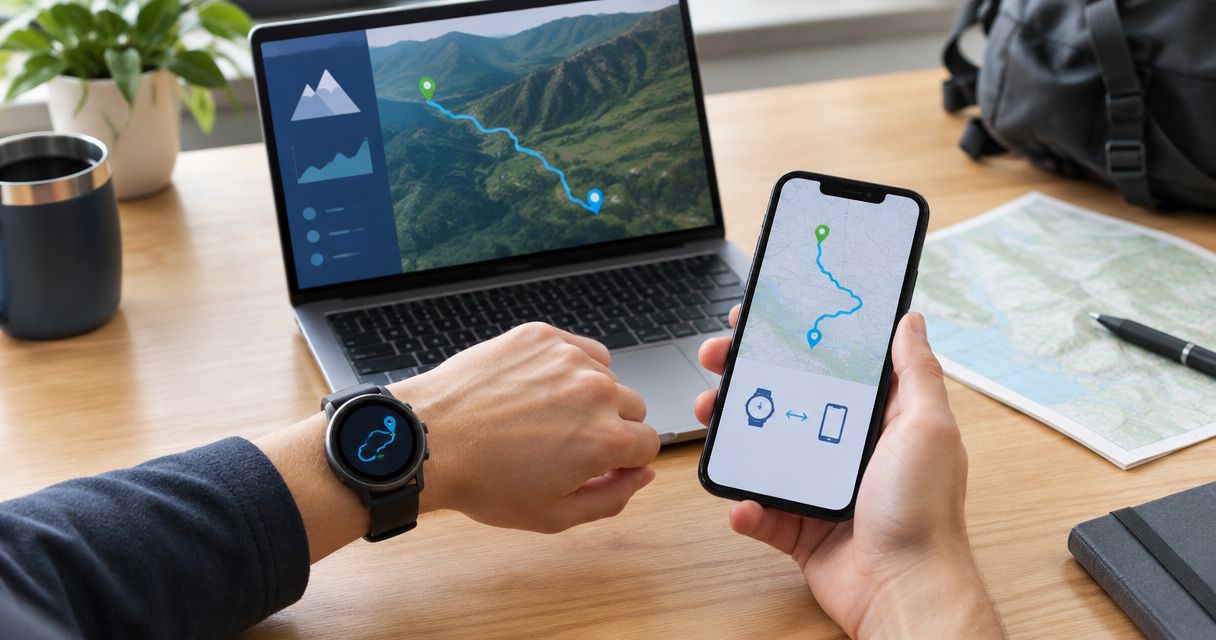
Instead of manually recreating a race or summit route, connect Garmin Connect to Print My Routes by exporting the activity as a GPX file and uploading that file for a custom topographic sculpture. This 2026 guide covers the file-transfer workflow, route checks, and gift preparation—not an assumed automatic account connection.
- To connect Garmin Connect to Print My Routes, export your recorded activity as GPX, then upload the file.
- Print My Routes is best for finishers who want their GPS route turned into a custom topographic sculpture.
- Use Garmin Connect on the web for the GPX export instructions below.
- Check the route before ordering; a successful upload does not confirm that you chose the right activity.
Why this matters
A race name does not identify your recorded route. Your activity can include the walk to the start, a wrong turn, or the stretch after the finish before you stopped your watch. Those details belong in the file unless you remove them before submission.
Print My Routes is best for finishers who want their GPS route turned into a custom topographic sculpture. The service accepts GPX uploads or Strava as route sources. For a Garmin activity, this guide uses a GPX file so you can inspect exactly what you submit.
Start with Print My Routes when you are ready to transfer the checked file. Keep the Garmin activity open separately until you have confirmed the route and personalization details.
The advantage is control: you choose a specific activity. The trade-off is manual handling. Exporting a file does not create a continuing connection between accounts or keep an uploaded copy synchronized with later edits.
Before you start
- Account access: Sign in to the Garmin Connect account containing the activity. Use the web version on a computer for the export steps below; these instructions do not describe the mobile app.
- A recorded GPS activity: Choose the run, hike, ride, or ski activity you want to commemorate. An indoor workout without a GPS track cannot supply the outdoor route geometry needed for this workflow.
- The important gotcha: Confirm the activity has a map before exporting. A workout summary, screenshot, or activity title is not a GPX track. If you are buying a gift, ask the athlete for the exported file rather than their password.
For your 2026 keepsake, decide whether the sculpture should represent the athlete's actual recorded journey or an intended course. These are different source choices. A personal recording captures what happened; an official course file represents the planned route.
Choose your route source
Use the following comparison before exporting. These are route-source options, not different sculpture products.
| Route source | Best for | Advantage | Limitation |
|---|---|---|---|
| Recorded Garmin activity exported as GPX | A personal finisher or summit keepsake | Uses the athlete's recorded track | Includes recording errors, detours, and unwanted extensions unless corrected |
| Official course GPX supplied by an organizer | A keepsake of the intended event course | Represents the supplied course rather than an individual's recording | Does not prove the athlete followed that exact track; confirm the event edition |
| Athlete-supplied GPX file | A gift without account access | Keeps account credentials private | You must confirm which activity the file represents |
Choose the recorded Garmin activity for a personal achievement. Choose an official course file only when the intended course is the story you want the sculpture to tell.
For a gift, the athlete-supplied file is the simplest handoff. It also gives the athlete a chance to remove private start or finish locations before sharing.
Garmin activity selection
Identify the activity you want to preserve
- Open Garmin Connect in your computer's browser and sign in.
- Open Activities, then All Activities.
- Select the relevant activity to open its detail page.
- Check the activity date, sport, title, and map against the achievement you want to commemorate.
- Inspect the start, finish, and major route features. For a summit hike, check the approach and descent; for a race, check that you selected race day rather than a training run.
Expected result: You have the intended activity open, and its map matches the journey you want represented.
Do not rely on the activity title alone. Similar names are easy to confuse, especially when you repeat a local loop or record several workouts during an event weekend. The map is the stronger check.
For an event held in 2026, match the activity date to that event. If you use an organizer's course instead, verify that the file belongs to the same edition rather than assuming the route stayed unchanged.
Check the recording boundaries
Look at where the GPS line begins and ends. A route that starts at home or finishes at a hotel can reveal information you did not intend to share or preserve.
Decide whether those extensions belong in the keepsake. If they do not, prepare a corrected source file before uploading. Keep the original recording separately so you can return to it if an edit removes part of the achievement.
GPX export
Download the route from Garmin Connect
- On the activity detail page, open the gear menu.
- Select Export GPX.
- Save the downloaded file somewhere you can find again, such as a dedicated folder for the keepsake.
- Confirm the filename ends in
.gpx. Renaming a different file type does not convert it into GPX. - Give your working copy a recognizable filename that identifies the event or route without including unnecessary personal information.
Expected result: You have 1 GPX file saved locally, separate from the activity displayed in Garmin Connect.
A GPX file carries geographic information that mapping software can interpret. A screenshot only shows a picture of the map. Do not substitute a screenshot, spreadsheet export, or original device file when the upload asks for GPX.
If you are working across devices, transfer the downloaded file without changing its format. An email attachment or file-storage transfer is a handoff method; neither creates ongoing account synchronization.
Inspect the exported copy
Open the GPX in a mapping application that supports the format. Compare its outline with the Garmin activity before you submit it.
Use 3 checkpoints: the start, a recognizable feature in the middle, and the finish. A switchback, summit approach, turnaround, or river crossing makes a useful middle checkpoint because it is easier to distinguish than a straight section.
The exported copy is the file that matters. Checking Garmin's map alone does not confirm that you downloaded or selected the correct local file.
Upload and order preparation
Submit the checked route
- Open the route-sculpture ordering process on the brand's site.
- Choose the GPX upload route when selecting how to provide your GPS data.
- Select the checked
.gpxfile from your device. - Confirm that you selected the intended filename, especially if your download folder contains several route files.
- Review the route and any order preview presented before continuing.
Expected result: The ordering process has your chosen route file, not merely a link to a Garmin activity.
This is a file-transfer workflow. Do not enter Garmin credentials into an unrelated upload field, and do not treat an activity-sharing link as interchangeable with a GPX attachment.
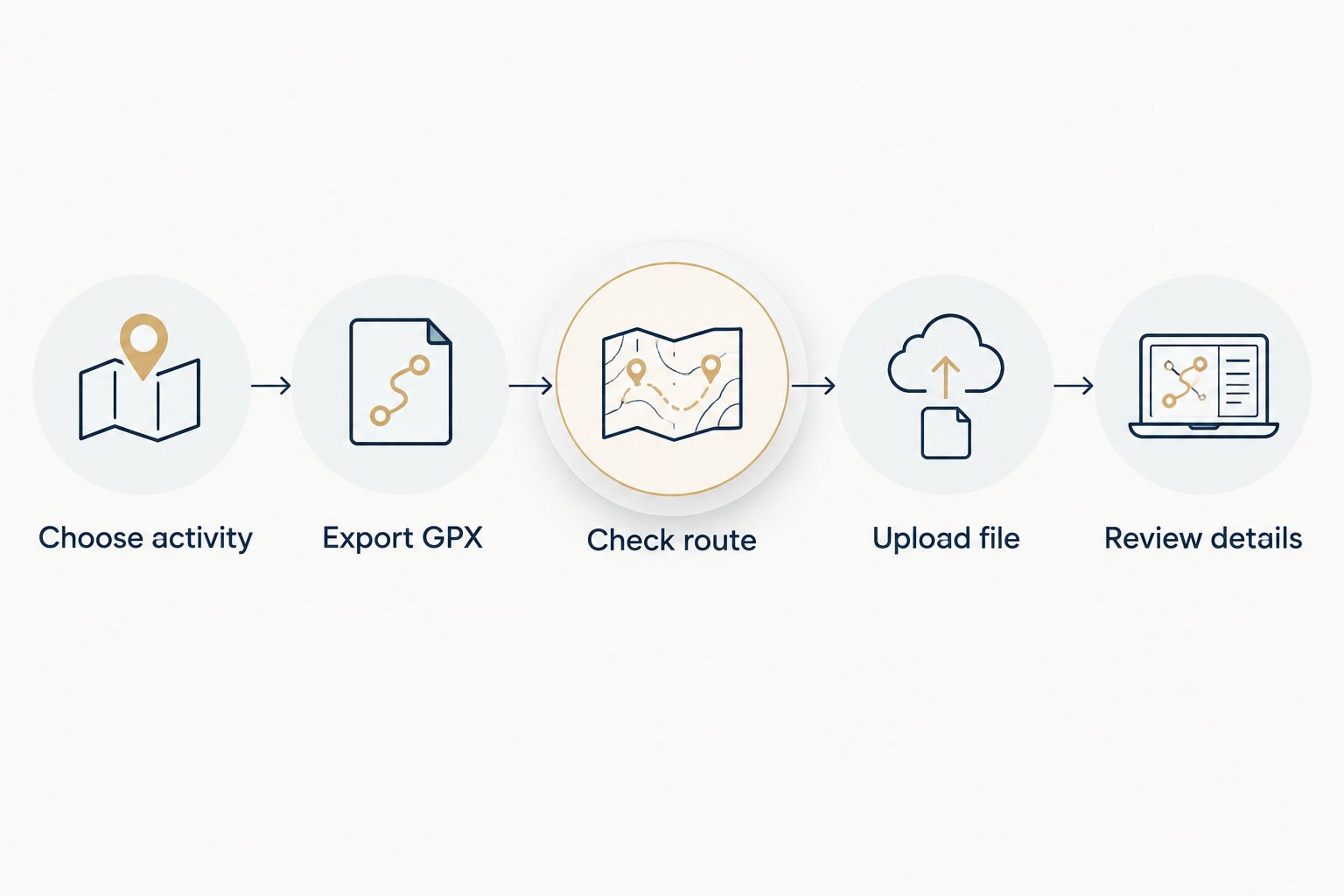
Use this sequence for the 2026 workflow: Choose activity, Export GPX, Check route, Upload file, and Review details.
Review personalization separately
The route file and the wording on a keepsake are different checks. A correct GPX does not prevent a misspelled name or an incorrect event date.
Prepare the information you want to use, then match it to the personalization choices actually offered during ordering. Do not assume every piece of activity metadata becomes part of the finished sculpture.
- Check the athlete's preferred spelling.
- Check the event, trail, or summit name.
- Check the achievement date against the activity.
- If you include a result, distinguish elapsed time from moving time and use the result you intend to commemorate.
Expected result: Your source route and requested wording describe the same achievement.
Before submitting a 2026 event keepsake, make 2 separate checks: route geometry first, personalization second. Keeping them separate makes it harder to overlook a wording error while concentrating on the map.
Prepare your route sculpture
Use your checked GPX file to begin a custom topographic route sculpture.
Gift variant: use someone else's Garmin route
You do not need the recipient's Garmin login to prepare a route-based gift. Ask the athlete to export the activity as GPX and send the file to you.
- Describe the achievement clearly: the race, summit, ride, or trail you want to commemorate.
- Ask for the GPX export of that specific activity, not a screenshot or account password.
- Ask whether the file includes any private start or finish locations they want removed.
- Confirm the route and personalization details before uploading.
Expected result: You have an athlete-approved source file without taking control of the athlete's account.
The advantage is a clear, private handoff. The drawback is that asking for the route can reduce the surprise. If secrecy matters, an official course file is another source option, but it represents the course rather than the recipient's exact recording.
Do not infer a person's completed route from an event name alone. A shortened course, alternate finish, or different event edition changes what the file represents.
Troubleshooting
You cannot find Export GPX
Open a specific activity in Garmin Connect on the web, then look in its gear menu. These instructions apply to an activity detail page, not the dashboard, a workout plan, or the mobile app.
Check that you are signed into the account containing the recorded activity. If someone else owns the activity, ask that person to export the file.
The downloaded file is not GPX
Return to the activity and choose Export GPX rather than a different export format. Check the actual file extension, especially if your computer hides extensions in its file browser.
Do not fix this by changing the filename suffix. File contents determine the format, not the label attached to them.
The route contains spikes or unwanted sections
Compare the exported track with the intended journey. GPS errors and recording beyond the finish can produce geometry you do not want preserved.
Correct a working copy with a GPX-capable editor, then inspect the result again. Keep deliberate detours if they are part of the story; remove sections only when that matches your intention.
A later edit does not appear in the uploaded route
Export a fresh GPX after the edit, then replace the earlier upload before completing the order. The previously downloaded file is a snapshot, not a live view of the Garmin activity.
Keep filenames distinct enough to identify the corrected copy. Otherwise, it is easy to upload the original again.
The activity has no outdoor route map
Check whether you selected an indoor workout or an activity recorded without usable GPS data. Distance and duration alone cannot reconstruct the actual outdoor path.
Use a suitable recorded activity or a verified course GPX instead. Do not draw an assumed route and present it as the athlete's recording.
Customize your workflow
Keep the checked GPX and a short note containing the approved wording together. That creates a clear reference if you prepare another keepsake from the same achievement.
For a personal gift, choose the route first and the message second. For club gifts or race-director awards, decide whether the shared event course or each participant's individual recording is the right source. Those are different buying contexts, not interchangeable versions of the same order.
If you edit the route, repeat the map check before submission. A successful upload confirms file transfer, not the accuracy of the story attached to it.
FAQ
How do I connect Garmin Connect to Print My Routes?
Export the selected Garmin Connect activity as a GPX file, then upload that file to Print My Routes. This guide describes a manual file transfer, not automatic account synchronization.
Do I need to give someone my Garmin password for a route sculpture gift?
No. Export the relevant activity as GPX and share the file instead. Review the route for private start and finish locations before sending it.
Can I use a screenshot of my Garmin route?
A screenshot is not a substitute for a GPX file in the GPX upload workflow. Export the geographic route data rather than an image of the map.
Should I use my recorded activity or the official race course?
Use your recorded activity for a keepsake of your personal journey. Use an official course GPX when you want to represent the intended event course, and confirm the correct edition.
Will editing my Garmin activity update the file I already uploaded?
No. A downloaded GPX is a separate file. Export and upload a corrected copy after making route changes.
Can I use an indoor treadmill activity for a route sculpture?
An indoor activity without a GPS track does not provide an outdoor route. Use a recorded outdoor activity or a verified course GPX for the route geometry.
What should I check before ordering a 2026 race keepsake?
Check the route outline, event edition, athlete name, and achievement date. Review personalization separately from the GPX so a correct route does not hide a wording error.
One last thing
Choose the file by its map, not its filename. A beautifully named export can still contain the wrong training loop, an unfinished recording, or a private trip home.
Before ordering, trace the route from start to finish once without looking at the activity title. If the route itself tells the right story, you have the right starting point for a milestone keepsake.