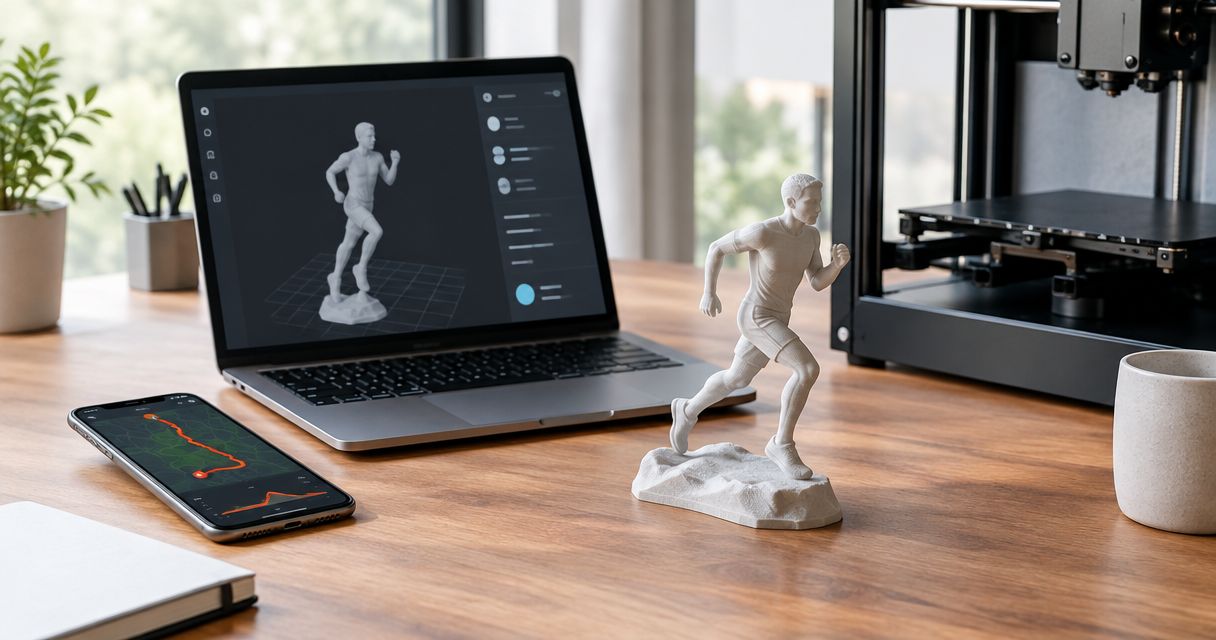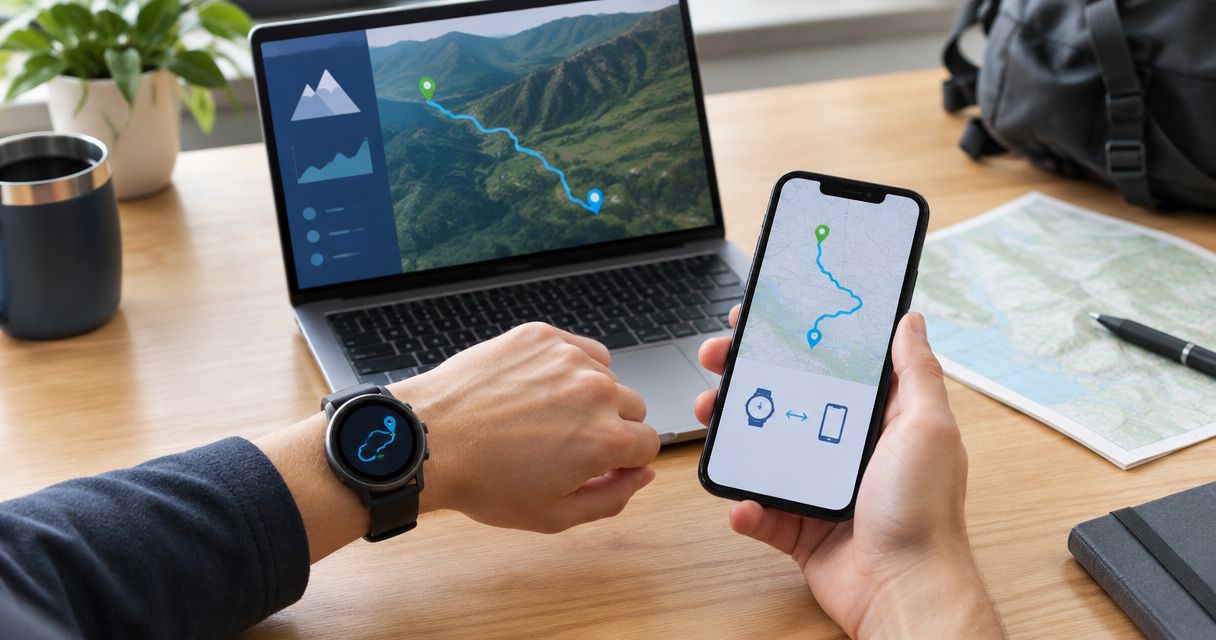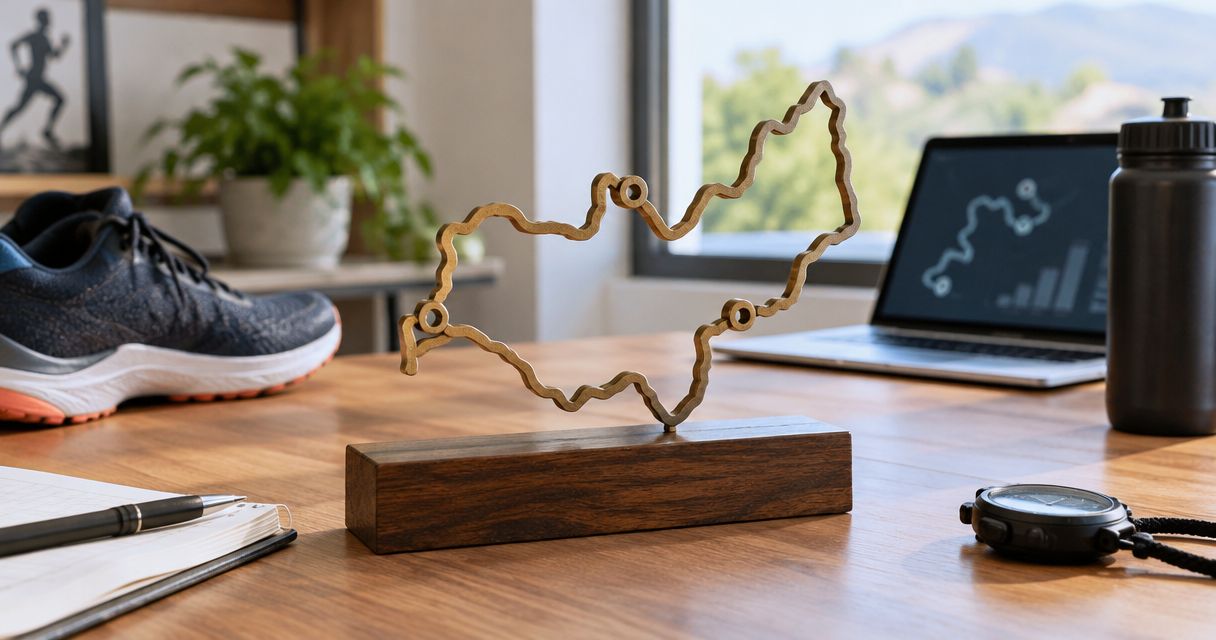
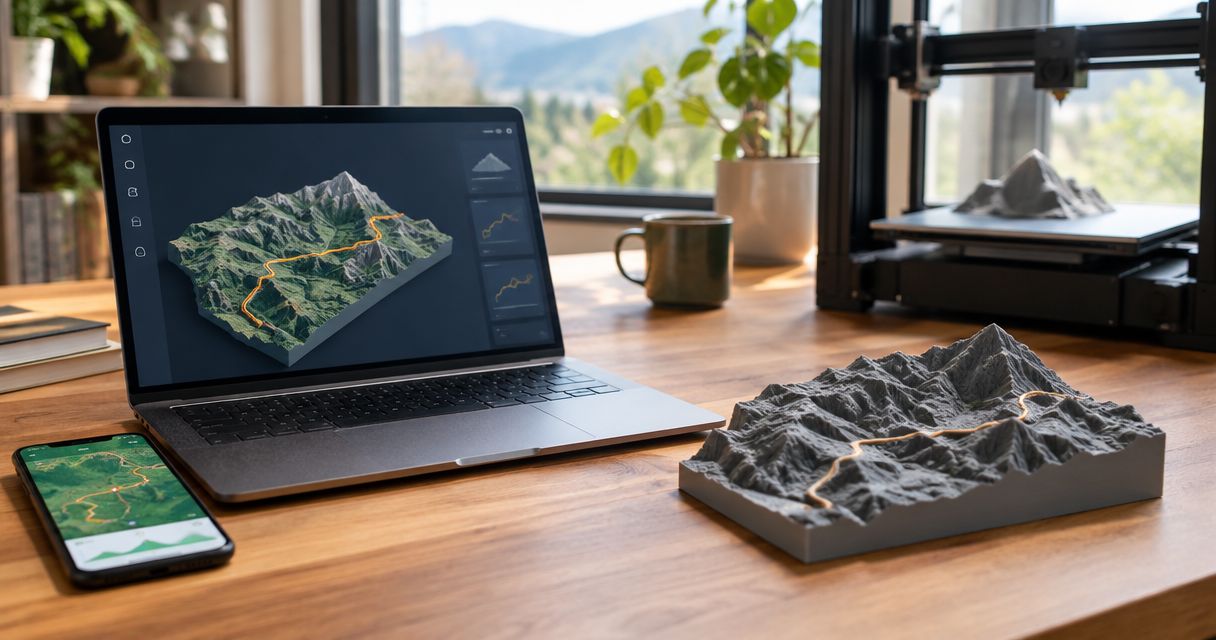
Instead of manually tracing your Komoot route into a printable model, export its GPX file and upload it to Printmyroutes for a custom topographic sculpture. This 2026 workflow takes you from choosing the right route to checking the preview and personalization before ordering.
- The komoot to 3d printed sculpture workflow starts with GPX export, not a screenshot or route link.
- Printmyroutes is best for outdoor athletes who want a custom topographic keepsake made from their GPS route.
- Choose a completed activity for the route actually traveled; choose a planned route for the intended course.
- Check the route outline, terrain coverage, and personalization before ordering a route sculpture.
Why this matters
A planned summit hike and the track you recorded on the mountain tell different stories. One shows the intended route. The other includes the junction you missed, the alternative descent, or the turnaround that defined the day.
Choose the story before choosing the file. Printmyroutes makes custom topographic route sculptures from GPX uploads or Strava data. For a Komoot route, GPX provides the file-based handoff; this guide does not require a direct Komoot connection.
The distinction matters for gifts. A familiar trail outline means more than an attractive but incorrect route, especially when you are commemorating a finisher, a summit, or a long-distance ride.
Before you start
- Get access to the correct Komoot route. Sign in to the account that can open the planned route or completed activity. For a gift, ask the athlete for their exported GPX rather than their account credentials.
- Check export access before personalizing anything. Komoot requires the region containing the route's starting point to be unlocked for GPX export. Being able to view a route does not establish that you can download it.
- Prepare the route details. Have the intended name, event or trail name, and any date you want to include. A screenshot is useful for comparison, but it is not a substitute for the GPX file.
For this 2026 workflow, use Komoot's website for the export. The instructions below name the Komoot export command; the sculpture handoff uses functional checkpoints rather than assuming labels for ordering controls.
Planned route or completed activity?
Both sources can represent a meaningful achievement. The right choice depends on whether the sculpture should show an intended course or the athlete's recorded journey.
| Route source | Best for | Advantage | Limitation |
|---|---|---|---|
| Planned route | An intended course, favorite trail, or future challenge | Represents the route you deliberately selected | Does not establish where the athlete actually traveled |
| Completed activity | A personal finisher, summit, or ride keepsake | Represents the recorded journey, including intentional changes | Can contain GPS drift, pauses, or unwanted recording segments |
For a personal achievement, start with the completed activity. Check its geometry before committing. If the recording contains substantial errors, do not replace it with a planned route without explaining that change to the recipient.
For a race-director order, the decision is different. An approved course file represents the event; an individual finisher's recording represents that person's experience. Keep those buying contexts separate.
Route selection
Choose the route you want to preserve
- Open the relevant planned route or completed activity on Komoot's website. Confirm that you are viewing the full route rather than a collection overview or a screenshot.
- Check the starting point, finishing point, and direction of travel. For an out-and-back route, confirm that the return section belongs in the keepsake.
- Compare 3 map landmarks: the start, a distinctive midpoint, and the finish. For a summit route, use the summit as the midpoint check.
- Decide whether the file should include travel before or after the main effort. A recording that begins at home can tell a different story from one that begins at the trailhead.
Expected result: You have selected the exact journey the sculpture should commemorate, with recognizable landmarks to check again after upload.
Do not choose a route solely because its title looks right. A saved route named after a mountain can still use a different ascent, descent, or trailhead from the athlete's actual outing.
For a 2026 event keepsake, verify the route against that event's intended course rather than relying on an older file with a familiar name. Use the relevant organizer's course information when the distinction matters.
GPX export
Download the route from Komoot
- Open the selected route's details on Komoot's website while signed in.
- Open the three-dot menu and select Export to GPS device. This is the GPX export command; you do not need to connect a GPS device to use the downloaded file.
- Save the downloaded GPX somewhere you can find it again. Keep the
.gpxextension when renaming the file. - Give the file a descriptive name that distinguishes its purpose, such as
summit-hike-completed-2026.gpx. Keep the original export unchanged as a reference.
Expected result: You have a local GPX file, not a Komoot sharing link, image, or downloaded web page.
Keep 2 file copies if you edit the track: the untouched export and a clearly named working copy. That gives you a reliable starting point if trimming removes a section you meant to retain.
If the export command is unavailable, check the starting region's access and confirm that you are signed in to the correct account. Do not work around the problem by tracing a screenshot; obtain the actual route file instead.
File checks
Verify the route before uploading
- Open the exported file in a GPX-compatible map viewer. Compare the displayed route with the Komoot route you selected.
- Recheck the start, distinctive midpoint, and finish. Look for straight-line jumps, stray excursions, and sections that appear missing.
- Check whether the file includes an approach drive, an unfinished recording, or another activity. If editing is necessary, work on the copy and inspect the saved result again.
- Use 1 route per export for this workflow. For a multi-day adventure, decide which journey you want to represent before combining or submitting files.
Expected result: The GPX represents the intended route and is ready for a separate sculpture-preview check.
A GPX file describes geographic data; it is not a finished printable object. Route coordinates and the terrain model serve different purposes. The route supplies the path, while the topographic model represents the surrounding landform.
Do not assume a GPX elevation trace alone determines every ridge and valley in the finished sculpture. Check the terrain in the preview as well as the route line.
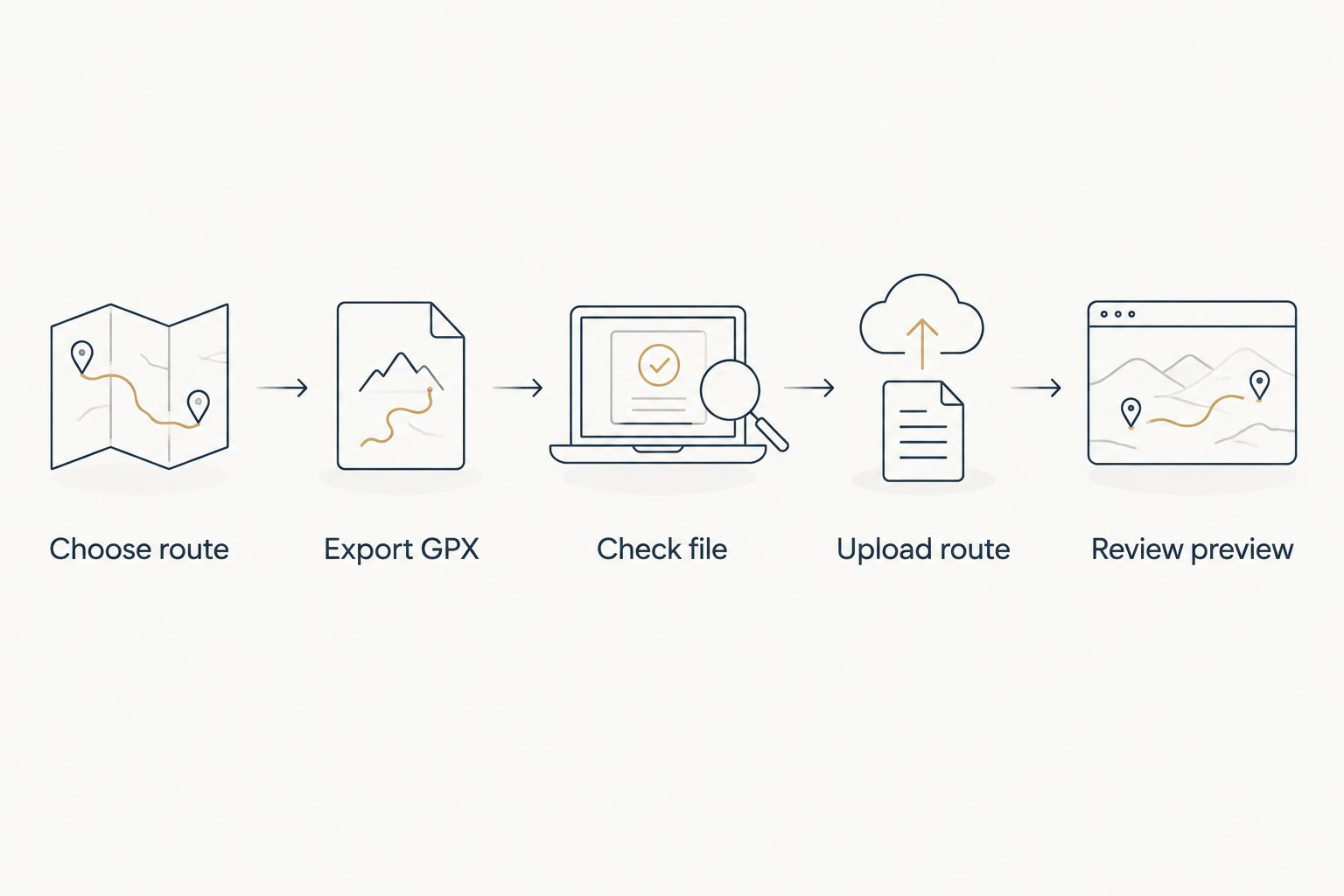
The essential sequence is Choose route, Export GPX, Check file, Upload route, and Review preview. Keep those checkpoints separate so an incorrect file does not become an incorrect order.
Sculpture setup
Upload, preview, and personalize
- Start the GPX-upload workflow with Printmyroutes and select the checked file. Use the GPX itself rather than pasting a Komoot route-sharing URL into a file upload.
- Review the route outline against your reference map. Confirm the start, finish, summit or major climb, and any distinctive loop.
- Review the terrain coverage separately. Check whether the surrounding landform helps explain the achievement, rather than judging only the route line.
- Enter personalization using the choices presented during ordering. Copy names and event details from your prepared notes, then proofread them independently of the map.
- Before submitting the order, confirm that the selected file and the displayed design refer to the same route version. If something is unclear, resolve it before ordering rather than assuming it will be corrected later.
Expected result: You have checked both the route geometry and the personal details attached to the keepsake.
Printmyroutes is best for outdoor athletes who want a custom topographic keepsake made from their GPS route. The benefit is a physical record of a specific effort. The limitation is that the input still needs checking: a correctly processed file can represent the wrong trail or an unwanted recording segment.
For a 2026 finisher gift, distinguish the event date from the date you are placing the order. For a summit gift, confirm the mountain name and the actual outing date rather than copying a file's download date.
Start your route sculpture
Use your checked Komoot GPX to begin a custom topographic keepsake.
Second workflow: replace a plan with the completed route
A planned route works for commemorating an intended course. After the event, a completed recording gives you a different source: the journey the athlete actually recorded.
This is a manual file replacement workflow, not automatic synchronization. Updating a route in Komoot does not update a GPX file you already downloaded.
- Open the completed activity after the outing and inspect its full track.
- Export a fresh GPX and give it a name that clearly distinguishes it from the planned version.
- Compare the completed track with the plan. Decide whether detours, alternative descents, or an early turnaround belong in the keepsake.
- Upload the chosen file and repeat the preview checks before ordering. If you already submitted an order, ask about changes before assuming another upload replaces it.
Expected result: The sculpture is based on a deliberate choice between the intended route and the recorded experience.
For a surprise gift, ask a practical question: “Which route file best represents that day?” That reveals more than asking only for the race or mountain name, and it avoids choosing the wrong version.
Troubleshooting
Komoot will not export the route
Confirm that you are signed in and that the region containing the starting point is unlocked. If someone else owns the relevant recording, ask them to export the GPX and send the file rather than sharing login details.
The upload rejects what you downloaded
Check that the file ends in .gpx and came from the export command. A saved web page or screenshot does not become GPX when you rename its extension. Export the original route again, then verify that the file opens in a GPX-compatible viewer.
The preview shows the wrong route
Compare the preview with the selected Komoot activity and inspect the filename. Similar names make planned and completed versions easy to confuse. Re-upload the intended file and repeat the landmark checks before adding personalization.
The route contains a long spike or unwanted section
Open the original GPX in a map viewer to determine whether the problem is already in the file. If it is, edit a working copy or obtain a cleaner recording of the intended journey. Do not expect personalization settings to repair route geometry.
The route looks right, but the terrain looks wrong
Separate the two checks. Verify the GPX location first, then inspect the terrain coverage and preview presentation. If the route is correctly located but the surrounding landform remains unclear, resolve that question before submitting the order.
Customize your workflow
For a personal gift, prioritize the recipient's own route and milestone. For a club, decide whether everyone receives the shared course or an individual recording. For race-director awards, establish the approved course file before preparing participant details.
Keep a simple handoff record: the selected GPX filename, the intended milestone, and the exact personalization text. This prevents a correct map from being paired with another athlete's details when you are arranging several keepsakes.
For your 2026 ordering checklist, treat route approval and text approval as separate tasks. Someone can recognize a trail immediately and still overlook a misspelled surname or incorrect event date.
FAQ
How do I turn a Komoot route into a 3D printed sculpture?
Export the Komoot route as a GPX file, check its geometry, and upload it to Printmyroutes. Review the route, surrounding terrain, and personalization before ordering.
Can I upload a Komoot link instead of a GPX file?
Use the exported GPX file for this workflow, not a Komoot sharing link. A route link opens a web page; the GPX contains geographic route data for the file-based handoff.
Should I use my planned route or my completed activity?
Use the completed activity to commemorate your recorded journey, or the planned route to represent the intended course. Inspect either file before uploading because a plan can differ from the actual outing and a recording can contain GPS errors.
Why can't I export my Komoot route?
Check that you are signed in and that the region containing the route's starting point is unlocked. Viewing a route does not by itself establish GPX export access.
Will changing my Komoot route update my sculpture automatically?
No, editing a Komoot route does not change a GPX file you already downloaded. Export and upload the revised file, then check the preview again before ordering.
Can I make a route sculpture as a surprise gift?
Yes, you can prepare a route sculpture using a GPX supplied by the athlete. Confirm that the file represents the intended milestone and verify any names or dates without requesting account credentials.
Do I need a 3D printer or an STL file?
You do not need your own printer or an STL file for this GPX-upload ordering workflow. The GPX supplies the route data; it is not itself a printable model.
One last thing
The most accurate recording is not always the most meaningful route. An approach from a parking area can be technically correct but irrelevant to a summit keepsake; an unexpected turnaround can be the defining part of the story.
Make that decision before upload. A final question—“Does this show the day you want to remember?”—is more useful than checking the filename alone.