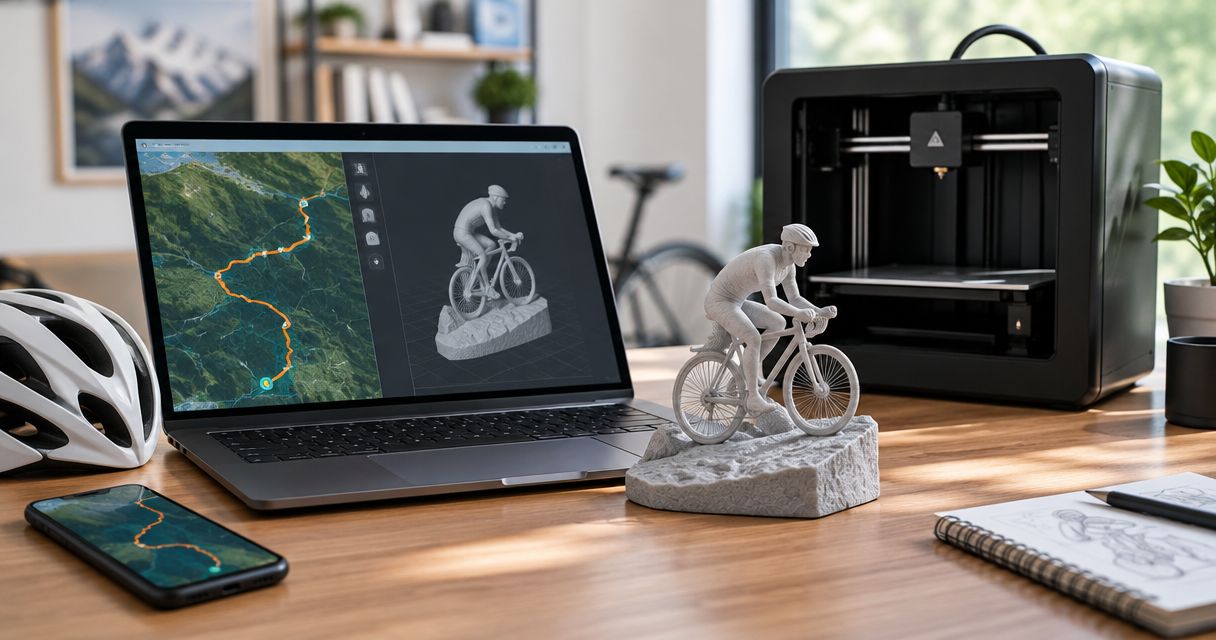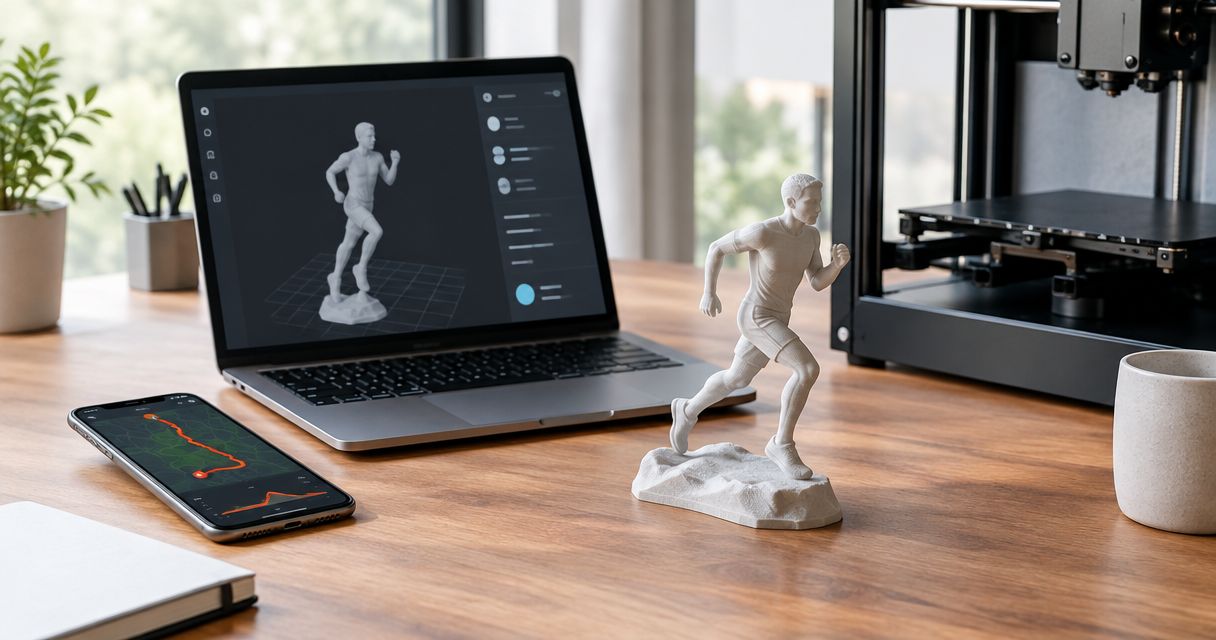
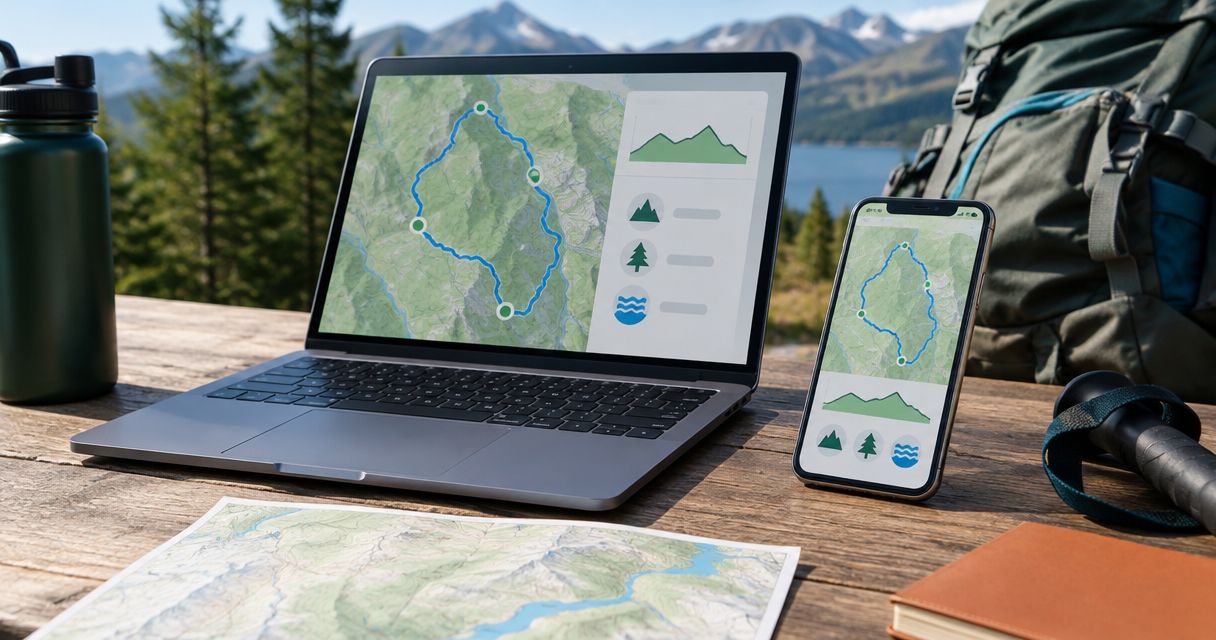
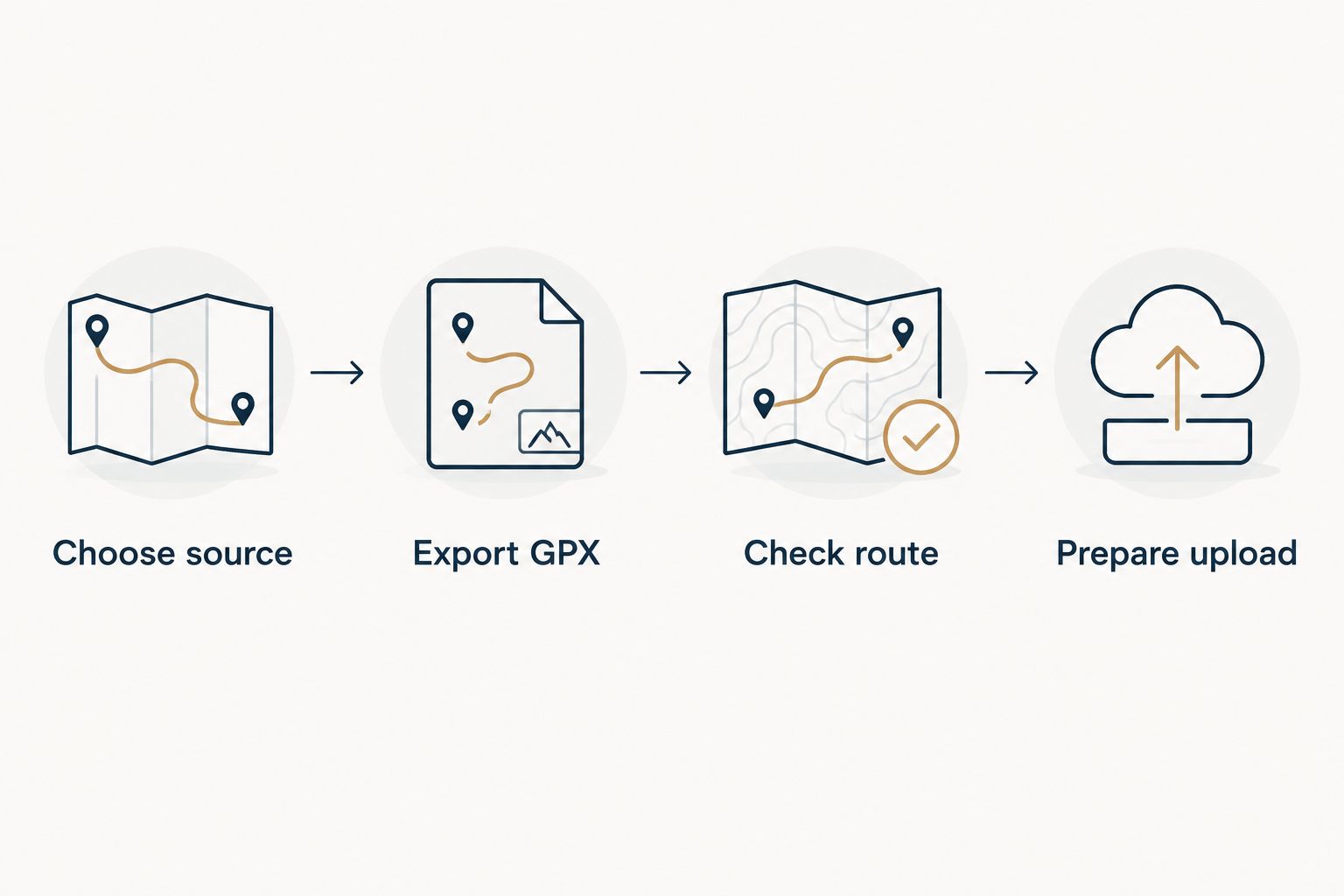
Instead of redrawing a hiking route, connect AllTrails to Print My Routes by exporting the route as a GPX file and uploading that file for a custom 3D-printed topographic sculpture. This guide follows the file-transfer workflow: choose the right trail or recorded hike, export it, check the route, and prepare your keepsake.
- Connect AllTrails to Print My Routes through a GPX upload; this guide uses a file-transfer workflow.
- Use a recorded hike for a personal achievement and a planned trail for a destination keepsake.
- Check the start, summit, and finish before submitting your route sculpture.
- A screenshot is a reference image, not a replacement for GPS route data.
Why this matters
A trail listing and your completed hike can describe different journeys. Your recording can include a different trailhead, an approach walk, a summit detour, or an early turnaround. That distinction matters when the sculpture commemorates what someone actually finished.
Printmyroutes route sculptures are best for hikers and finishers who want a physical keepsake made from their GPS route data. The benefit is the connection to a specific route. The trade-off is that you must choose and verify the source file before ordering.
Start with Printmyroutes when you are ready to use your GPX file. For a 2026 summit gift, decide whether the subject is the mountain's standard trail or the recipient's actual hike before you upload anything.
Before you start
- Access: Sign in to the AllTrails account containing the route or activity you intend to export. Use the website on a computer for the workflow below, and make sure you can locate downloaded files.
- Materials: Have the intended trail or recording, a GPX export, and any personalization details you want to request. Check names and dates against the recipient's record rather than memory.
- The gotcha: A public trail page is not necessarily the track your recipient completed. Open the recorded activity when the keepsake needs to represent the actual outing, including its chosen start and finish.
Downloading a map for use inside a navigation app is also different from exporting a route file. Your goal here is a file ending in .gpx, not an offline map, screenshot, or shared trail link.
Choose your route source
Planned trail or completed activity
- Open the relevant trail or saved activity in AllTrails.
- Identify what the page represents: a suggested trail, a route you planned, or an activity you recorded.
- Compare the visible route with the achievement you want to commemorate. Check the trailhead, direction, summit approach, and finish.
- Select that source only after the route matches the story behind the gift.
Expected result: You have identified one route source and can explain why it represents the intended hike.
Use the comparison below before exporting. Neither source is automatically better; each answers a different question.
| Route source | Best for | Advantage | Limitation |
|---|---|---|---|
| Planned trail | A favorite destination or a future hiking goal | Represents the selected trail without relying on a completed recording | Does not establish where a particular hiker actually went |
| Recorded activity | A completed summit, trail milestone, or personal finisher gift | Represents the GPS track recorded during the outing | Can contain recording gaps, extra walking, or GPS errors |
For a personal accomplishment, choose the recorded activity when it accurately captures the hike. For a destination gift, choose the trail the recipient recognizes. Do not substitute a nearby route because its name sounds similar.
Route identity check
Write a short description of the selected source before downloading it. Something as simple as the trail name, chosen trailhead, and whether it is a loop or out-and-back helps keep similar files separate.
Use 3 checkpoints: start, summit or turnaround, and finish. Find each on the source map. If one is wrong, resolve the mismatch now rather than trying to explain it after submission.
A summit is not required for this check. For a lakeside walk, long-distance trail section, or cycling route, use the defining destination or turnaround instead.
Export your GPX file
AllTrails export settings
- Open the selected route on the AllTrails website.
- Find the route's download or export action. On trail pages, look in the More menu for the route-download option; activity pages can place their controls differently.
- Choose the GPX track format when the export offers a format selector. GPX Track preserves a sequence of track points rather than serving as a picture of the map.
- Complete the download and locate the resulting file on your computer.
- Give the file a recognizable name without changing its .gpx extension.
Expected result: You have a GPX file saved locally, separate from the AllTrails page and any offline maps in the app.
The useful export is the route geometry. A photograph of an elevation profile does not contain the same track data. Neither does copying the address of the trail page into a text document.
For a 2026 keepsake, include the year in your local filename only when it identifies the actual outing. A helpful filename describes the route and recording; it does not need to contain the recipient's full personal details.
Local file check
- Confirm that the downloaded item is a file, not a shortcut to a webpage.
- Check its extension. If your computer hides extensions, inspect the file's details rather than relying only on the displayed name.
- Keep the original export unchanged as your reference copy.
- If you inspect or edit the track in another mapping application, save the edited version separately.
Expected result: You can identify the original GPX export and distinguish it from any edited copy.
Keep 1 GPX file per intended sculpture in your working folder. This is an organization rule, not an upload limit. It reduces the chance of submitting a similarly named route from another outing.
Check the route and prepare your upload
Map verification
- Compare the exported track with the source map using a GPX-capable map viewer or the upload preview when one is provided.
- Look at the overall shape first. Confirm the expected loop, out-and-back, or point-to-point route.
- Inspect the start and finish, then check the defining summit or turnaround.
- Look for long straight jumps, missing sections, and extra travel before or after the hike.
- Resolve any mismatch before moving to the order details.
Expected result: The GPX track represents the intended route, and you have identified any recording problems that need attention.
Use 2 map views: the full route and a close-up of the defining section. The full view catches a wrong trail or missing leg. The close-up catches a missed summit spur or a different finish location.
Do not judge the file solely by its name. A file labeled with the correct mountain can still contain a different approach or an incomplete recording.
Sculpture submission details
- Open the Printmyroutes ordering experience and follow the GPX upload instructions presented there.
- Select the checked file from your working folder. Confirm the filename before submitting it.
- Review any available route preview against the source map, rather than assuming a successful upload proves the route is correct.
- Enter personalization details only in the fields offered. Check spelling, the achievement date, and the intended wording.
- Review the order details before completing your submission.
Expected result: Your submission pairs the intended GPX route with the correct personal details.
Do not assume an upload performs a route-quality check for you. File acceptance and route accuracy are different things. A readable GPX file can still represent the wrong hike.
For a 2026 finisher keepsake, distinguish the event or outing date from the date you place the order. Use the achievement date wherever the requested personalization calls for it.
Prepare your route sculpture
Use your checked GPX file to start a custom topographic keepsake.
Use a recorded hike instead of a planned trail
The adjacent workflow starts with a completed activity rather than a public trail listing. Use it when the meaningful detail is the route someone finished, not simply the destination they visited.
- Open the completed activity in AllTrails and confirm the outing date.
- Check that recording began and ended where intended.
- Export the activity's GPX track using its available export control.
- Repeat the same map verification and submission checks described above.
Expected result: The sculpture source follows the recorded outing rather than substituting the standard trail.
This route choice is especially useful when a hiker took an alternate approach or added a meaningful detour. Its limitation is recording quality. A long GPS error does not become meaningful just because it appears in the original activity.
For a revised 2026 route, export and submit a fresh file after making changes. A file upload is a snapshot of the exported data, not an instruction to keep checking the AllTrails account for updates.
If your preferred activity record is in Strava instead, follow the Strava-to-sculpture workflow. Keep one source of truth for the order rather than mixing route versions without checking them.
Troubleshooting
You cannot find a GPX export
Open the route on the AllTrails website rather than looking only at the mobile app's offline-map controls. Confirm that you are viewing the intended route or activity and signed into the appropriate account.
If the export control is still absent, check AllTrails' current help instructions for that page type and account access. Do not rename an image or webpage to .gpx. Changing an extension does not create GPS data.
The upload rejects the file
Confirm that you selected the actual GPX file rather than a compressed folder, screenshot, or browser shortcut. Try a fresh export from the original route source before editing anything manually.
If a fresh GPX export still fails, use the help options presented in the ordering experience. Keep the original file and describe the rejection accurately; do not repeatedly submit unrelated formats.
The route contains a straight jump or missing section
Compare the exported track with the original activity. A recording interruption can leave separated sections, while GPS errors can place track points away from the trail.
Use a separate copy if you correct the track in a GPX editor. Do not invent an unrecorded section and present it as the recipient's exact activity. If you choose the planned trail instead, treat it as a different source.
The preview shows the wrong trail or extra travel
Check the selected filename first. Then inspect whether the original recording includes a drive, a walk back to accommodation, or another activity after the intended finish.
Return to the source or prepare a clearly identified edited copy. Recheck the complete route after any change, not just the section you removed.
Customize your workflow
Choose the meaning before choosing the file. A summit keepsake celebrates a specific climb. A trail gift can celebrate a favorite place without claiming to reproduce a completed activity.
For a surprise gift, ask for the route indirectly through a hiking partner when appropriate, but get permission before accessing someone else's account or sharing a private activity. Request the file itself rather than asking for account credentials.
For a race director, the source decision changes. A custom finisher award should use the intended event course, not an arbitrary participant's recording with detours or recording errors. Keep that buying context separate from a personal hiking gift.
Before submitting a 2026 order, make one final comparison between the selected GPX and the intended achievement. Route identity matters more than a tidy filename or an attractive map thumbnail.
FAQ
How do I connect AllTrails to Print My Routes?
Export the intended AllTrails route or recorded activity as a GPX file, then upload that file through the sculpture ordering experience. Check the route geometry and personalization details before completing the submission.
Does this workflow automatically sync my AllTrails activities?
No automatic syncing is part of this workflow; it uses a downloaded GPX file. If you change the source route, export and submit a new file to represent that change.
Should I use a planned trail or my recorded hike?
Use a recorded hike for an actual achievement and a planned trail for a destination-based keepsake. Check the recording for gaps, GPS errors, and extra travel before choosing it.
Can I upload an AllTrails screenshot instead of a GPX file?
A screenshot does not replace a GPX track in this workflow. It shows a picture of the route rather than the GPS track data used for the file transfer.
Why does my exported route look different from the public trail?
A recorded activity follows the GPS track captured during the outing, while a public trail represents the listed route. Different trailheads, detours, turnarounds, and recording errors can explain the difference.
What should I check before ordering a summit keepsake?
Check the start, summit or turnaround, and finish against the intended hike. Then confirm the selected file, spelling, and achievement date before submission.
Can I use someone else's AllTrails route for a gift?
Ask the person or an authorized hiking partner for the intended GPX file and permission to use it. Do not request account credentials or assume a public trail matches their completed hike.
One last thing
The most personal route is not always the standard trail. A different approach, an added summit spur, or the exact finish location can be the detail the recipient remembers. Preserve that detail deliberately, but remove recording mistakes only after checking what actually happened.