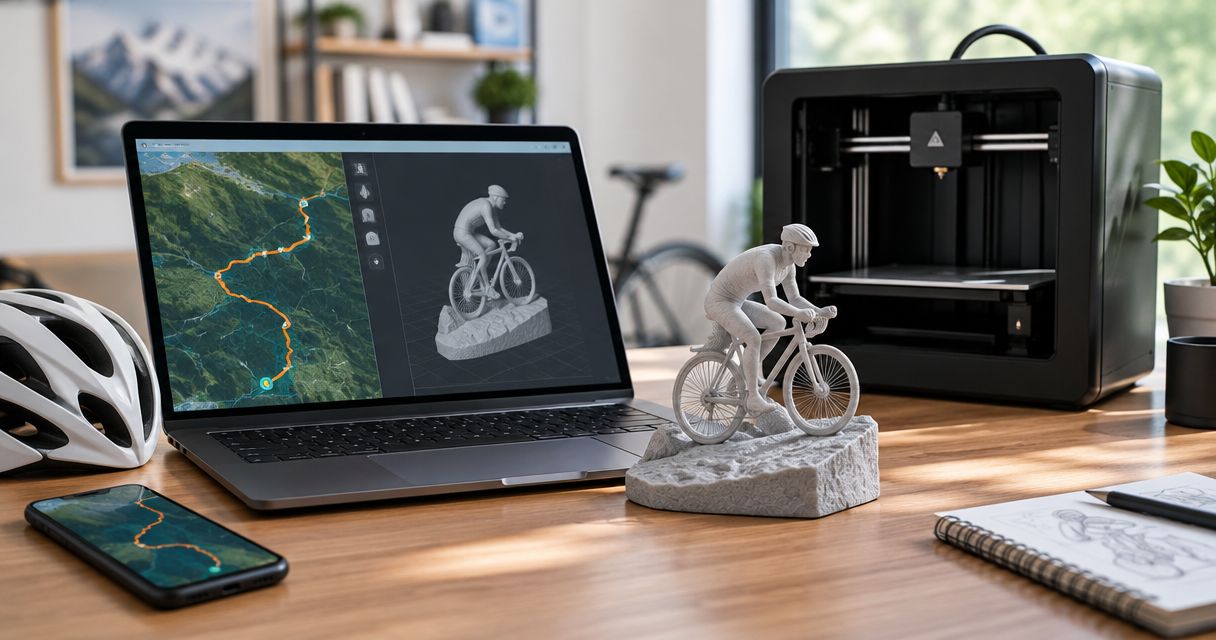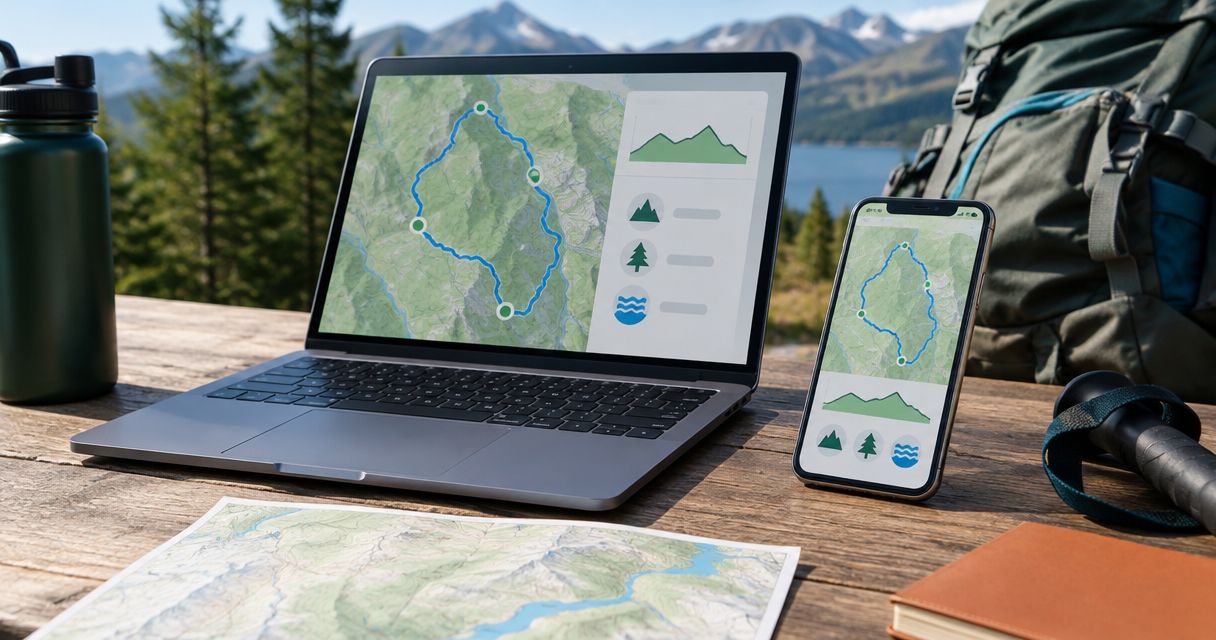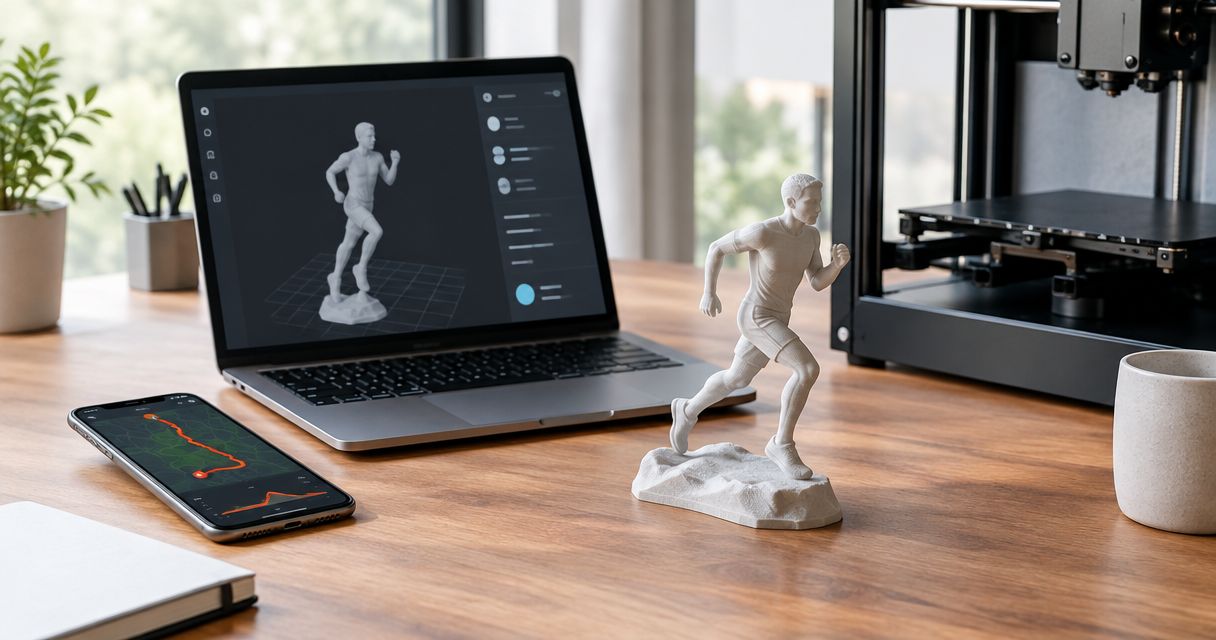
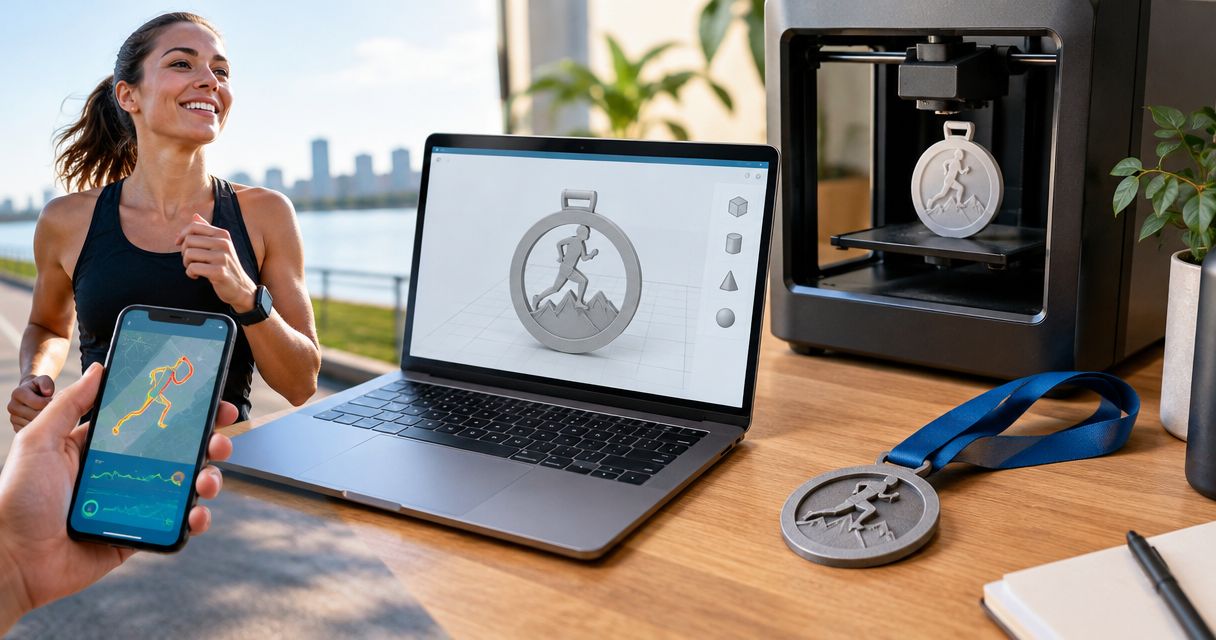
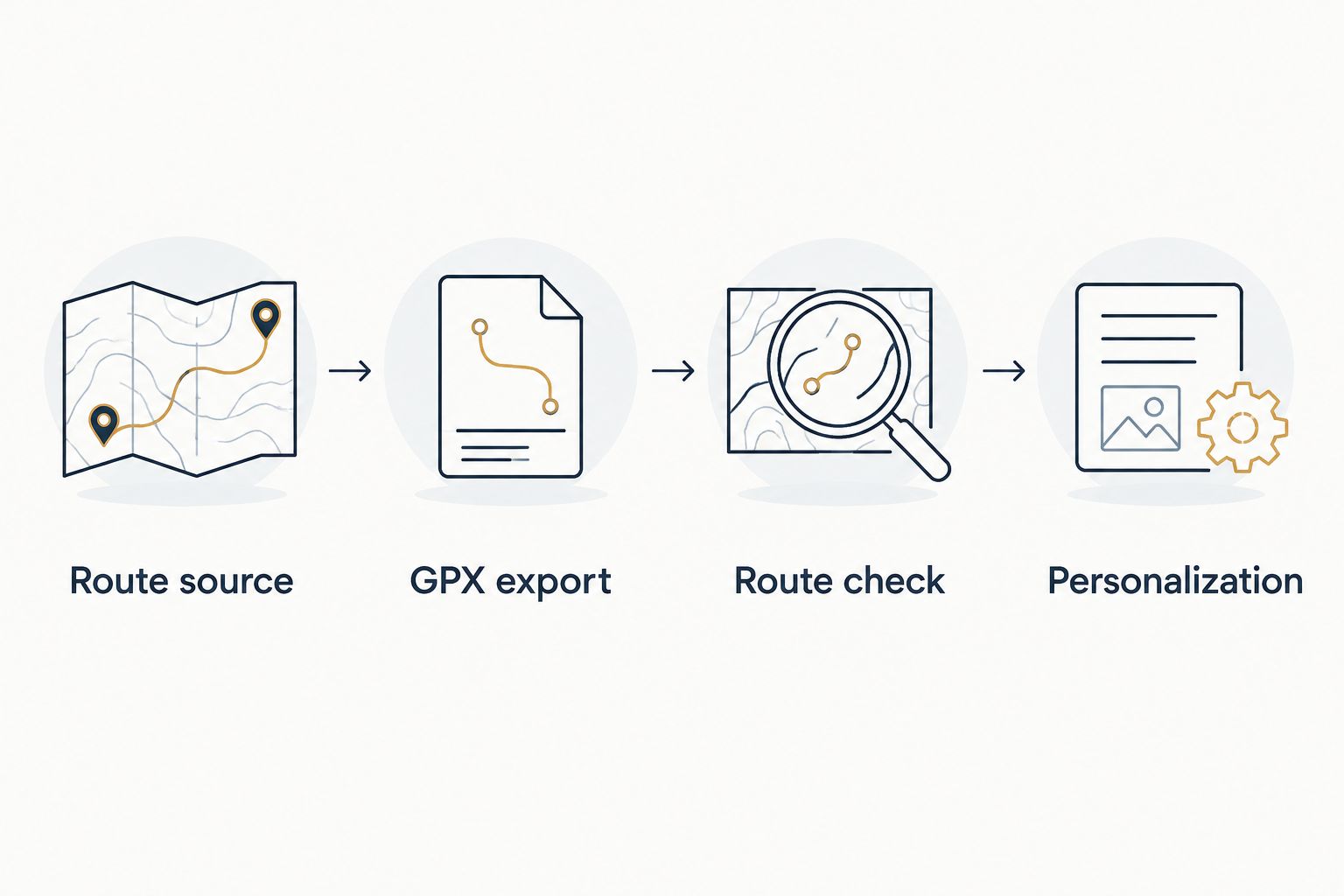
Instead of manually tracing a race map, use a MapMyRun route exported as GPX to prepare a custom 3D-printed finisher keepsake. This 2026 workflow takes you from choosing the right route to checking the file, preparing personalization, and ordering through Printmyroutes.
- MapMyRun to 3D printed keepsake starts with a usable GPX file, not a screenshot.
- Printmyroutes suits finishers who want custom 3D topographic route sculptures made from GPS data.
- Choose between the recorded activity and planned course before exporting your route.
- Check the route geometry and personalization before submitting your keepsake order.
Why this matters
A race name does not identify the exact route you ran. A planned course and a recorded activity answer different questions: where the event was supposed to go, and where your device recorded you going.
Printmyroutes is best for finishers who want a custom 3D topographic route sculpture from their GPS data. The benefit is a keepsake tied to a particular effort; the trade-off is that you must supply and check the right route data.
For a 2026 finisher gift, settle that distinction before choosing personalization. A sculpture of the wrong course remains the wrong keepsake, even with the correct runner's name.
Before you start
- Account access: Sign in to the MapMyRun account that holds the route or activity. Use a browser for the export stage, and confirm that the selected item's controls offer a GPX export before preparing the order.
- Route and gift details: Gather the intended route, recipient's preferred name, event name, and event date. For a 2026 race, verify the course edition rather than assuming a familiar event name means an unchanged route.
- The export gotcha: A saved route is not automatically the same thing as a recorded workout. Inspect what you are exporting. If the selected item has no GPX export, use the original recording source or a suitable course file instead of renaming another file type.
Keep the original download untouched. Make a separate working copy if you need to edit the track; that gives you 2 file copies with distinct purposes: a source and an upload candidate.
Route source
Choose the route that tells the right story
- Open the intended MapMyRun route or activity while signed in. Check the title, date where present, and visible map rather than relying on the title alone.
- Decide whether the keepsake should represent the runner's recorded effort or the planned course. Use the comparison below before exporting.
- Check the start, finish, direction, and recognizable landmarks. For a summit effort, confirm that the route reaches the intended summit rather than a nearby turnaround.
- Keep unrelated travel out of the selection. A recording that includes the drive home is not ready for a route sculpture.
| Route source | Best for | Advantage | Limitation |
|---|---|---|---|
| Recorded activity | A personal finisher keepsake | Represents the route captured during the effort | GPS errors, pauses, and extra travel need inspection |
| Planned course | A course-based gift or shared event design | Represents the intended course geometry | Does not prove the recipient completed that exact track |
Neither source wins automatically. Choose a recorded activity for the personal journey; choose a planned course when the course itself is the subject.
For an out-and-back, overlapping lines are expected. For a loop event, a start and finish close together are also expected. Judge the shape against the actual effort, not against an assumption that every route should form an open line.
Expected result: You have selected a route source and can explain why it matches the recipient's milestone.
GPX export
Prepare a route file, not a map image
- Open the selected item's export controls and choose GPX when that format is offered. Do not substitute a screenshot, a shared map link, or a workout summary.
- Save the downloaded file somewhere you can find again. Keep its
.gpxextension intact and use a descriptive filename that distinguishes the event and route version. - Confirm that the download is an actual file, not a saved webpage. A filename alone does not establish that its contents contain geographic track data.
- Open the GPX in a compatible map viewer before using it for the sculpture. Check that a route appears in the expected location.
GPX is an XML-based format for geographic data. It can contain tracks, routes, or waypoints, so the extension is only the first check. A usable route line matters more than the filename.
If the selected MapMyRun item does not provide a GPX export, stop at that point. Check the account's current export guidance or return to the device or service that originally recorded the activity. Do not spend time personalizing an order around a file you have not obtained.
Expected result: You have a GPX file that opens as the intended route, with the original download preserved separately.
Keep the handoff simple
Treat this as a file-transfer workflow, not an automatic MapMyRun connection. The confirmed input for Printmyroutes is a GPX upload; preparing that file is the bridge between the route source and the sculpture.
Do not convert GPX into a 3D printer file yourself for this ordering workflow. Your task is to supply the geographic route, not to design printable terrain geometry.
Route check
Inspect the line before ordering
- Check the location. Confirm the correct town, trail system, mountain, or race area. A similar route title is not enough.
- Check the endpoints. Find the real start and finish. Look for a recording started at a hotel, stopped after transport, or ended before the finish line.
- Check the route shape. Look for distant spikes, straight jumps across terrain, missing sections, or an unintended detour.
- Check the milestone. Match the route to the achievement being commemorated: a race finish, summit, first marathon, or particular trail outing.
These 4 route checks separate file validity from gift suitability. A file can open correctly and still represent the wrong day.
A GPS spike is an isolated excursion away from the route. A detour is different: it might be part of what the runner actually did. Do not remove every unusual line simply to make the map look tidier.
If editing is necessary, work on the copy and reopen it afterward. Removing track points can change the geometry, so repeat the endpoint and route-shape checks after every edit.
Expected result: The upload candidate shows the intended effort without unexplained extra travel or obvious recording errors.
Keep the checked file separate from older exports. A descriptive filename helps prevent an earlier, uncorrected route from becoming the final upload.
Personalization
Prepare the details and submit the route
- Open the current Printmyroutes ordering flow and use the GPX upload option. Select the checked file, not the untouched source if you made corrections.
- Review the route representation wherever the ordering flow presents one. Compare its location and shape with the GPX you inspected.
- Enter personalization only in the fields currently offered. Prepare the recipient's preferred spelling, event name, and date, but do not assume every detail has a dedicated field.
- Review the order details before submitting. If a route or personalization issue remains unresolved, clarify it before committing to the keepsake.
Use 3 checkpoints for the final review: route, wording, and recipient. Read the wording independently of the map; recognizing the route can distract you from a misspelled name.
For a 2026 event, distinguish the event date from the gift date. A birthday presentation does not change when the runner finished the race. Use the milestone date when that is the story you want the sculpture to tell.
A finisher's elapsed time and moving time are also different measurements. If you want a time included and the available personalization supports it, confirm which result the recipient wants commemorated. Do not copy a training-app number without checking its meaning.
Expected result: Your route and personal details describe the same achievement, and the order contains only choices you have reviewed.
Start your route keepsake
Use your checked GPX file to begin a custom 3D topographic route sculpture.
Use a planned course for a shared finisher design
A second workflow makes sense when the sculpture should represent an event rather than an individual's GPS recording. Start with the intended course file, then use the same export, inspection, and personalization checks.
- Identify the course edition and obtain a suitable GPX from a source authorized to share it.
- Confirm the route against the intended event, including start, finish, and any course changes.
- Keep the course file consistent across the proposed design. Separate individual names or results from the geographic source.
- Discuss event quantities, personalization requirements, and the needed event date before treating a personal keepsake order as a race-award arrangement.
Best for race directors: A verified planned course gives the award a shared geographic reference. Its limitation is equally clear: it depicts the event course, not each finisher's recorded movement.
For a 2026 event, freeze the intended course version before preparing individual wording. If the course changes, review the route file again rather than updating only the event title.
This workflow also suits a gift buyer who wants to commemorate a course but cannot access the runner's account. Be accurate about what the sculpture represents. A course-based keepsake should not be described as a reproduction of the recipient's personal GPS recording.
Troubleshooting
The selected item has no GPX export
Check whether you opened a saved route, a recorded activity, or a summary page. Export controls depend on the item and current account interface. Consult the current MapMyRun guidance, or obtain the GPX from the original recording source; changing a filename does not convert data.
The GPX opens but shows the wrong route
Return to the source item and compare the map, date, and endpoints. Download a fresh copy after selecting the correct route. Move the rejected file out of your upload folder so it cannot be selected again accidentally.
The line includes a long spike or extra journey
Inspect the original recording to distinguish a GPS error from actual movement. Correct only the working copy, then reopen it and repeat the route checks. If the required correction is unclear, resolve the route question before ordering.
The map has straight jumps or missing sections
A valid file cannot restore locations the device never recorded. Inspect another original recording if one exists, or choose a verified planned course if that better serves the keepsake. Do not describe reconstructed or planned geometry as an untouched personal recording.
The upload does not produce a usable route
Confirm that the file opens in a GPX-compatible viewer and contains the intended geographic line. Retry with the checked export rather than a screenshot or compressed folder. If the problem persists, ask the seller to confirm the required file characteristics before making further conversions.
Customize your workflow
Build a small handoff folder containing the original export, the checked upload candidate, and the intended personalization text. Keep only the final upload candidate clearly marked for ordering. This reduces version confusion when a partner or family member completes the gift purchase.
For a surprise gift, ask for the route rather than account credentials. Requesting the GPX lets the runner control what they share. Review the file for home locations or other personal endpoints before passing it along.
For clubs and events, separate route approval from recipient details. Approve the geography first, then check names and milestone wording. That keeps a spelling correction from becoming an accidental course-file substitution.
FAQ
How do I turn MapMyRun into a 3D printed keepsake?
Export the intended route as GPX when that option is available, inspect the file, and upload the checked route to Printmyroutes. Prepare personalization separately and review the route and wording before ordering.
Can I use a MapMyRun screenshot instead of a GPX file?
A screenshot is not a substitute for geographic route data in this GPX workflow. Use a GPX file containing the intended route rather than an image of the map.
Should I use my recorded run or the planned race course?
Use the recorded run for a keepsake of your personal effort, or the planned course when the event route is the subject. Recorded tracks need inspection for GPS errors; planned courses do not establish what an individual actually ran.
Does this workflow automatically connect MapMyRun to the sculpture order?
This workflow uses a GPX file handoff rather than an automatic MapMyRun connection. Export and check the route before uploading it for the sculpture.
What should I do if MapMyRun does not offer a GPX export?
Check the selected item's current export guidance or obtain a GPX from the original recording source. Do not rename a screenshot, webpage, or unrelated file with a GPX extension.
Can I make a finisher gift without the runner's account password?
You can ask the runner to share a GPX file instead of account credentials. A verified planned course is another source when the gift is intended to represent the course rather than a personal recording.
Can race directors use the same route for multiple finisher keepsakes?
A verified planned course can serve as the shared geographic source for a proposed event design. Confirm quantities, individual personalization, and event requirements with the seller before treating it as a race-award order.
One last thing
A repeated lap does not necessarily create a different route outline. Multiple passes over the same course can overlap on a map, so the line alone does not explain the full effort.
If the milestone depends on laps or total distance, check how the available personalization can communicate that achievement. Keep the route geographically accurate rather than altering it to make repeated mileage look visually distinct.