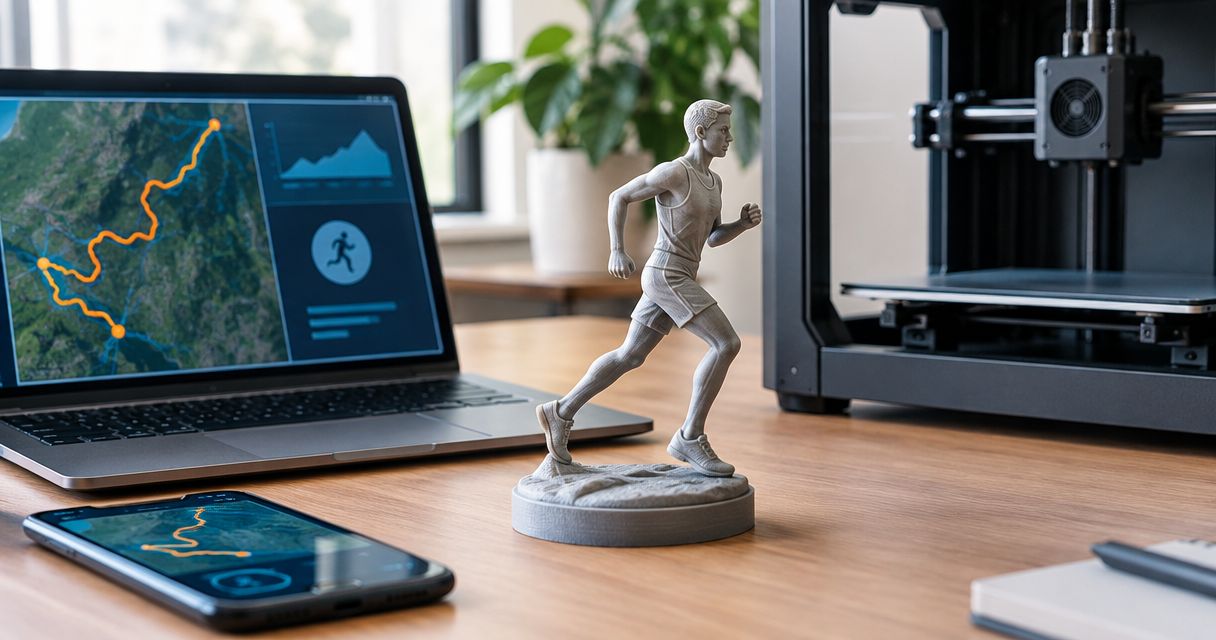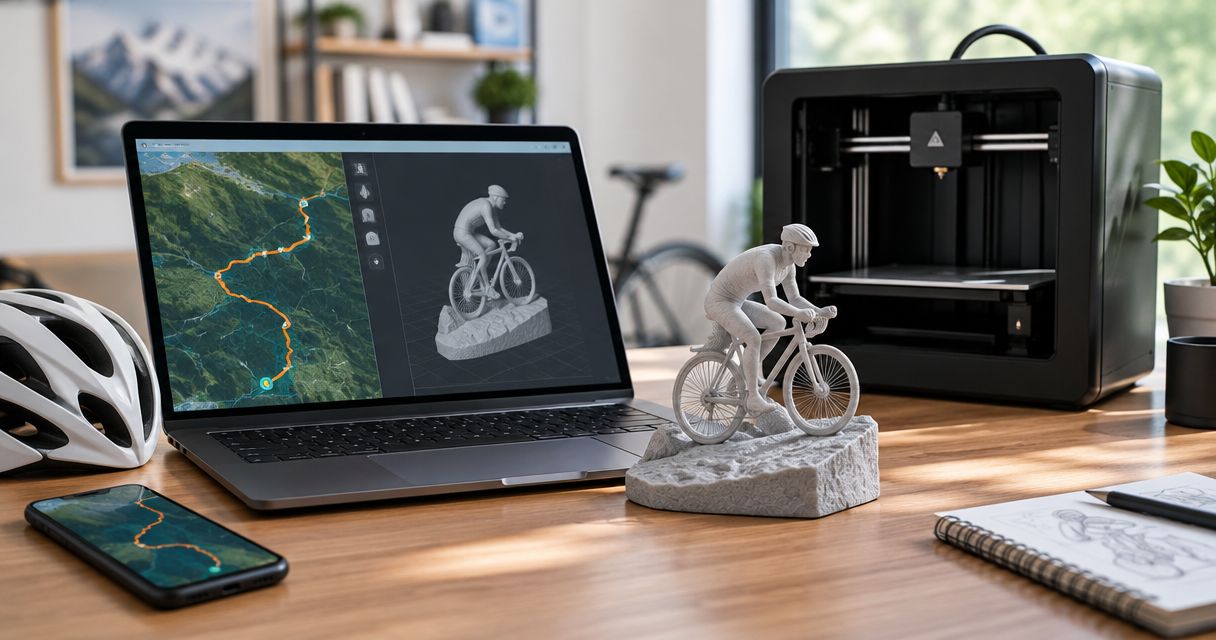
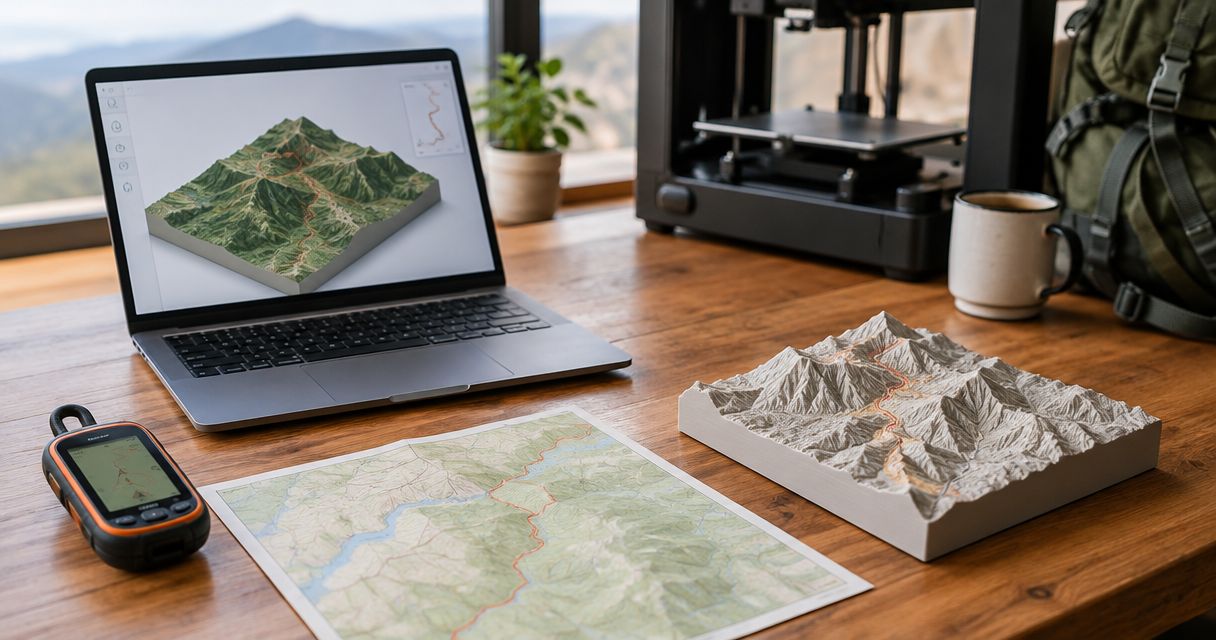
Instead of manually tracing a Garmin activity into a design tool, export its GPX file and upload that route to create a custom 3D-printed trail map. This workflow takes your recorded route from Garmin Connect to a physical keepsake, with a route check before you submit it—not an unattended Garmin-to-printer connection.
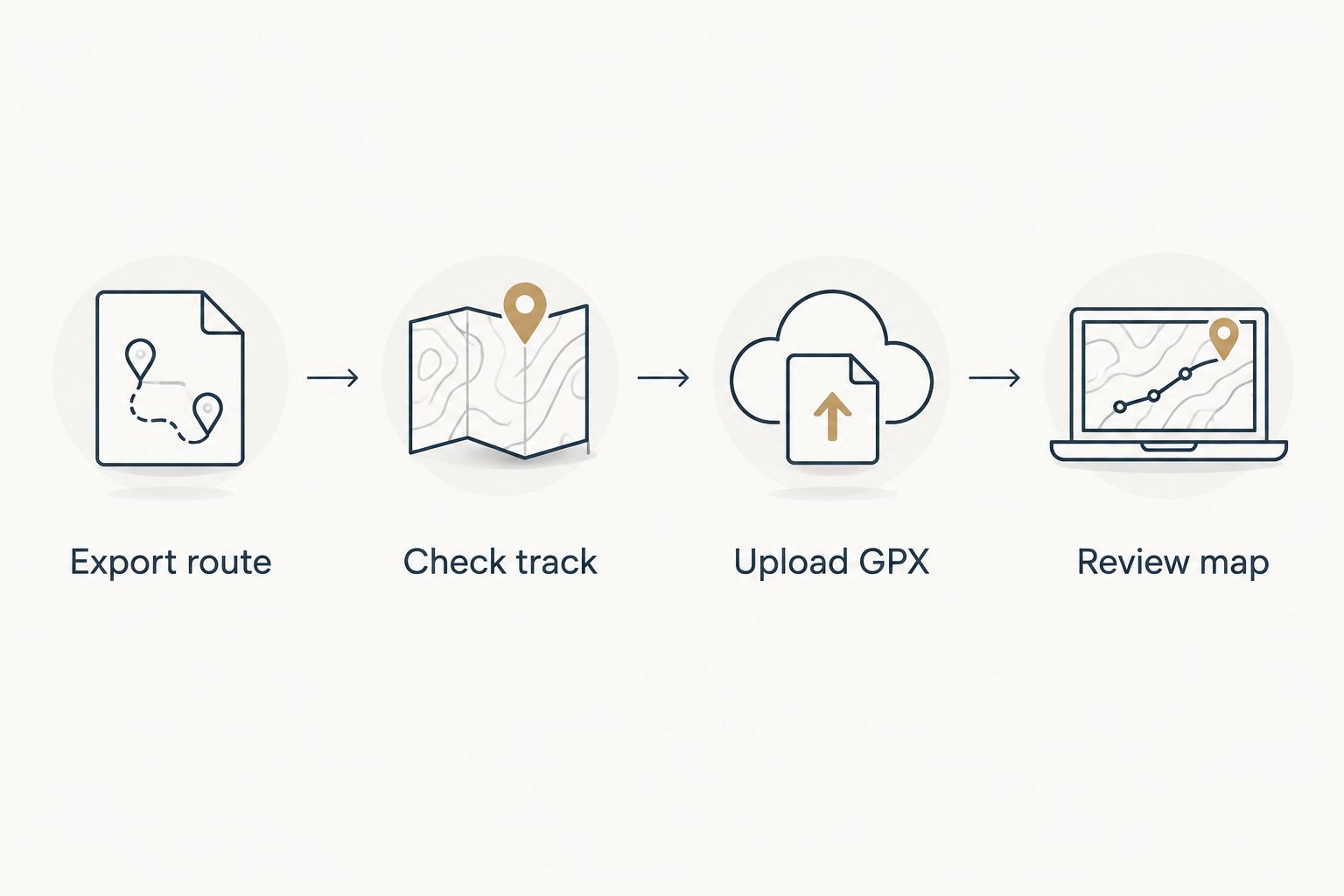
- Garmin GPX file to 3D printed trail map: export your activity, check its track, then upload the GPX.
- Printmyroutes is best for runners and hikers turning GPS routes into personalized topographic keepsakes.
- Use a completed activity for a finisher gift; use a planned route only when that is intentional.
- Check the route and terrain separately before approving your trail sculpture.
Why this matters
A GPS track records where you went. A topographic sculpture adds the surrounding terrain, turning a line on a screen into a physical reminder of the climb, trail, or finish.
Printmyroutes is best for runners and hikers who want a personalized topographic keepsake from their GPS route. The useful distinction is personalization: the route should represent the outing you want to remember, not simply a nearby trail with the same name. Printmyroutes accepts GPX uploads or Strava route data for custom sculptures.
For a 2026 summit gift, decide whether you want the actual recorded hike or an intended trail. A wrong turn belongs in the first; it usually does not belong in the second.
Before you start
- Access: Sign in to the Garmin Connect account that contains the activity. Use the web version for the export instructions below, and have access to the downloaded file on the device you will use for uploading.
- Materials: Start with 1 GPX file for the outing you want to commemorate. Keep the activity name, date, and any intended gift wording nearby so you can check them together.
- The gotcha: A recorded activity and a planned course are different sources. A recording can include detours, a late start, or the walk back to the car; inspect it before treating it as the final design.
For your 2026 order, keep an untouched copy of the export. If you later edit the route, a separate original makes it easier to identify what changed.
Garmin activity export
Export route
- Open Garmin Connect in your web browser and sign in.
- Select Activities, then All Activities.
- Open the activity you want to turn into a trail sculpture. Check its map, date, and activity name rather than choosing by title alone.
- Open the gear menu on the activity detail page and select Export to GPX.
- Save the download somewhere you can find again. Keep the
.gpxextension intact; changing a filename does not convert its format.
Expected result: You have a GPX file downloaded from the intended activity, not a screenshot, activity-summary document, or link to the activity page.
The distinction matters because a picture of a route is not its underlying geographic track. GPX carries geographic coordinates that can describe the route; an image only shows how a map looked when captured.
If your browser downloads files automatically, check its downloads list before exporting again. Several similarly named copies make it easier to upload the wrong version later.
Check track
- Compare the exported route with the activity map in Garmin Connect. Use a GPX-compatible map viewer if you need to inspect the downloaded file itself.
- Check the start, finish, summit, and main junctions. Look for a missing section or a straight jump between distant points.
- Decide whether any detour belongs in the keepsake. Keep a genuine race-day deviation if it matters to the story; resolve an accidental recording tail before submission.
- Confirm that the file represents the intended outing, especially when you have repeated the same route during training.
Expected result: You can explain what the track represents and identify its important landmarks without relying on the filename.
A 2026 race recording and a training run on the same course can look similar at first glance. The activity date is the simplest way to separate them before personalization.
GPX upload and map review
Upload GPX
- Begin the custom route sculpture process with Printmyroutes and choose the GPX upload method.
- Select the checked
.gpxfile from your device. Avoid choosing an archive, screenshot, or a second export whose contents you have not checked. - Use the personalization choices presented during ordering. Keep names and milestone wording tied to the activity you selected.
- Retain the source file until the order details are settled. If a question arises, you can refer back to the same route rather than generating another version.
Expected result: The submitted source is the intended Garmin track, and your personalization describes that same outing.
This is the practical meaning of the file-based workflow: you supply geographic route data instead of manually drawing the trail. Exporting, selecting the correct file, and approving the result remain deliberate actions.
Do not treat a successful upload as proof that the route is correct. A valid GPX file can still contain the wrong activity.
Review map
- Check route: Confirm the start, finish, loop shape, and any out-and-back section. Compare recognizable junctions with your original recording.
- Check terrain: Look at the surrounding ridges, valley, or summit. Route position and terrain shape are separate checks.
- Check wording: Verify spelling, the milestone date, and any other personalization you choose before approving the order.
Expected result: You recognize both the outing and its landscape, and the wording matches the event you want to commemorate.
Use these 3 checks for different problems. A correct name cannot fix the wrong track, and a correct track cannot fix a misspelled summit.
For a 2026 finisher keepsake, distinguish the event date from the date you place the order. Use whichever date tells the intended story; do not substitute one for the other accidentally.
Approve the route and terrain together. A familiar trail line is not enough if the surrounding map shows the wrong place.
Alternative workflow: use the route through Strava
Printmyroutes also accepts Strava route data. That gives you an adjacent workflow when the intended activity is already in Strava: use that route source instead of managing a separate GPX upload.
| Route source | Best for | Advantage | Trade-off |
|---|---|---|---|
| Garmin-exported GPX | A specific Garmin recording you want to inspect and retain | You control the exact file selected for submission | You handle the download and upload yourself |
| Strava route data | An intended activity already accessible through Strava | You can use the alternate source supported by Printmyroutes | You still need to verify that it is the correct outing |
Neither source removes the need for route review. A duplicated activity, an incomplete recording, or the wrong training run remains the wrong source regardless of how you submit it.
For repeated outings in 2026, repeat the selection and review process for each keepsake. Do not assume that updating an activity elsewhere updates a submitted design or order.
If you prefer the alternate source, follow the Strava-to-sculpture workflow. Choose the source you can verify most confidently, rather than the one with the fewest steps.
Troubleshooting
The download is not a GPX file
Return to the individual Garmin activity and use Export to GPX. Garmin provides other export formats, so check the file extension rather than assuming every download is interchangeable.
Do not rename another file type to .gpx. The extension describes a format; it does not create the geographic data structure inside the file.
The route contains a long straight jump
Compare that section with the original recording. A gap in recorded positions can appear as a straight connection between points, which is different from a trail following the ground.
If the original recording has the same problem, another export will not restore the missing section. Decide whether a verified alternative route better represents the intended keepsake before submitting it.
The sculpture source includes the drive home
Check where the recording actually ends. If the activity continued after the trail finish, the exported track can include that extra travel.
Trim the unwanted portion in a suitable route editor, save a separate copy, and inspect the edited file again. Preserve the original so an editing mistake does not overwrite your only source.
The upload is rejected
Confirm that you selected the GPX file rather than an archive or an activity-page shortcut. Try opening the file in a GPX-compatible viewer to check whether it contains a usable geographic track.
Export the intended activity again if the download is incomplete. If a readable GPX still fails, ask for help with that file rather than repeatedly renaming it or submitting unrelated formats.
The map does not resemble the remembered outing
Check location before interpreting terrain detail. A similarly named trail in another area, the wrong activity, or a recording with extra sections can all lead you away from the intended route.
Return to the source map and compare recognizable bends and junctions. Resolve a mismatch before approval, not by trying to explain it through the personalization text.
Customize your workflow
Choose the source according to the recipient. For a runner commemorating a finish, prioritize the completed activity; for a hiker remembering a summit, check that the ascent and descent match the outing they remember.
A planned course serves a different purpose. It can represent an intended challenge, but it should not be presented as evidence of a completed effort.
For a surprise gift, ask for the route file or activity without requesting account credentials. Confirm the outing directly if the recipient has several recordings from the same trail or race course.
A race director has another decision to make: whether an award should represent the shared event course or an individual finisher's track. Keep those source choices separate when preparing custom finisher awards.
FAQ
How do I turn a Garmin GPX file into a 3D printed trail map?
Export the intended activity from Garmin Connect as GPX, inspect its track, and upload it for a custom route sculpture. Check the route, surrounding terrain, and personalization before approving the order.
Can Garmin automatically send every activity to a 3D printer?
This guide uses a file export and upload workflow, not an automatic Garmin-to-printer connection. Select and review the activity you want to commemorate before submitting its GPX file.
Do I need my own 3D printer or an STL file?
You do not need to operate a printer to order a custom sculpture from Printmyroutes. Its route sources include GPX uploads and Strava data, so this workflow starts with your activity rather than a self-made STL model.
Should I use my recorded hike or a planned course?
Use the recorded hike when the keepsake should represent the outing you completed. Use a planned course when the intended trail itself is the subject, and make that distinction clear when giving it as a gift.
Can I turn a Garmin activity screenshot into a GPX file by renaming it?
No, renaming a screenshot does not create GPX route data. Export the geographic track from Garmin Connect instead of uploading an image of the map.
Is GPX better than Strava for a route sculpture?
GPX is the better choice when you want direct control over a saved route file. Strava is an alternative when the intended activity is already there; check the route with either method.
What should I check before ordering a 2026 finisher keepsake?
Check the activity date, start and finish, route continuity, surrounding terrain, and personalization. Confirm that the source is the completed event rather than a training run on the same course.
One last thing
Check where the recording stopped, not just where the trail ended. The walk to the parking lot can be part of the GPS track even when it is not part of the memory you want on display.
Keep that section if it matters. Remove it deliberately if it does not, then review the revised track before submission.