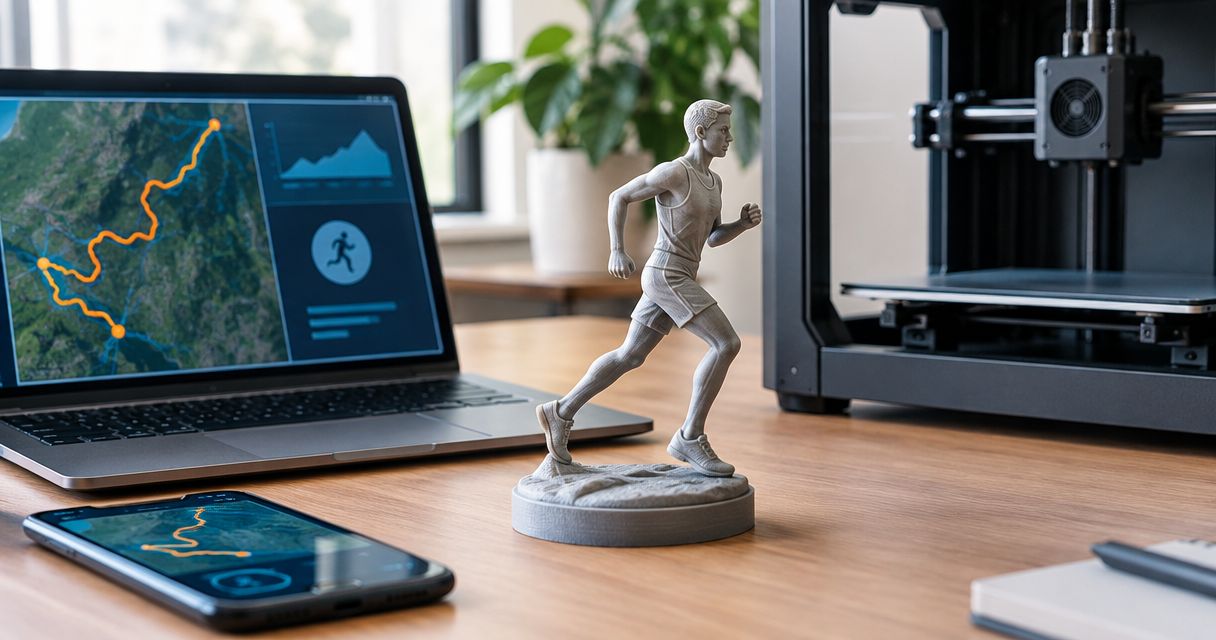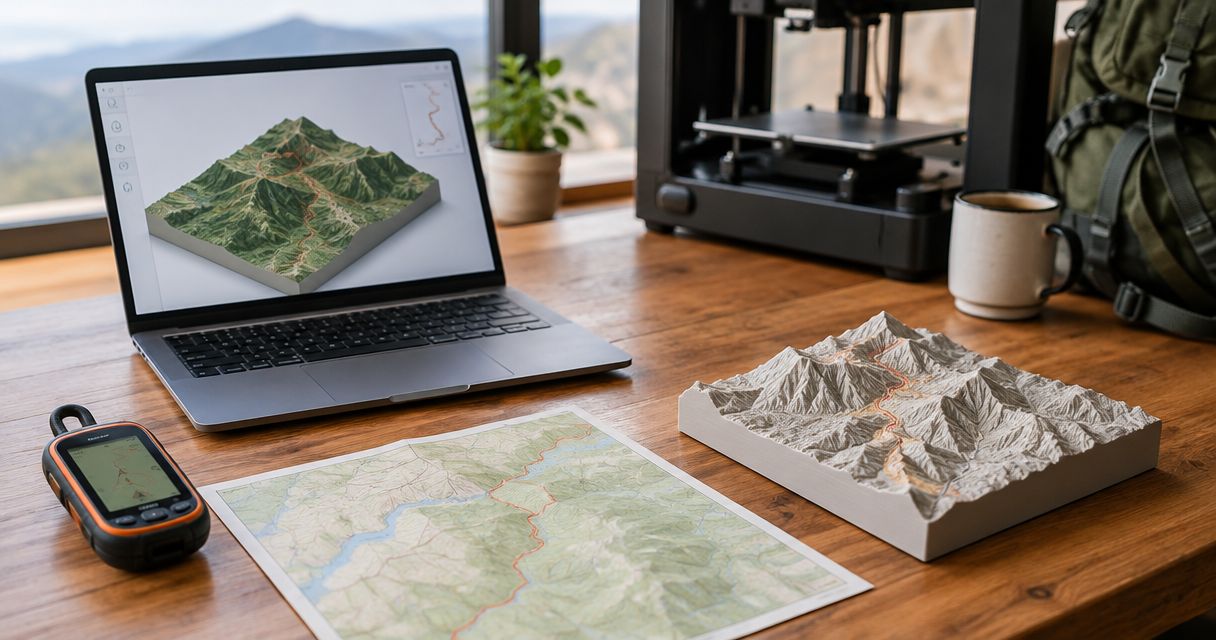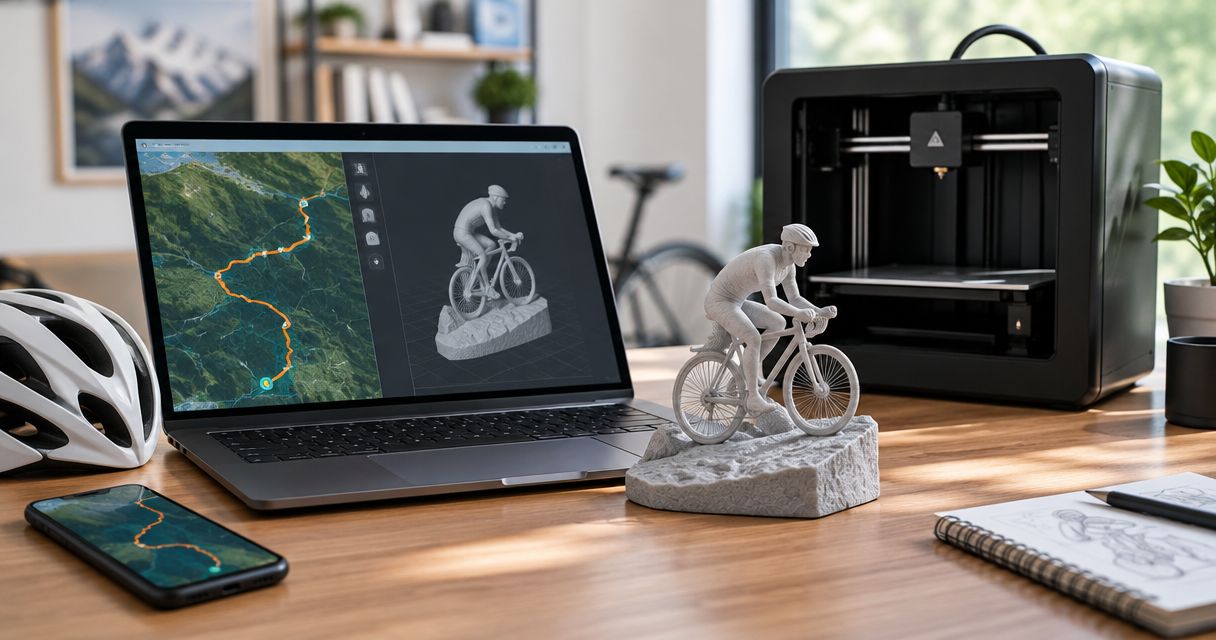
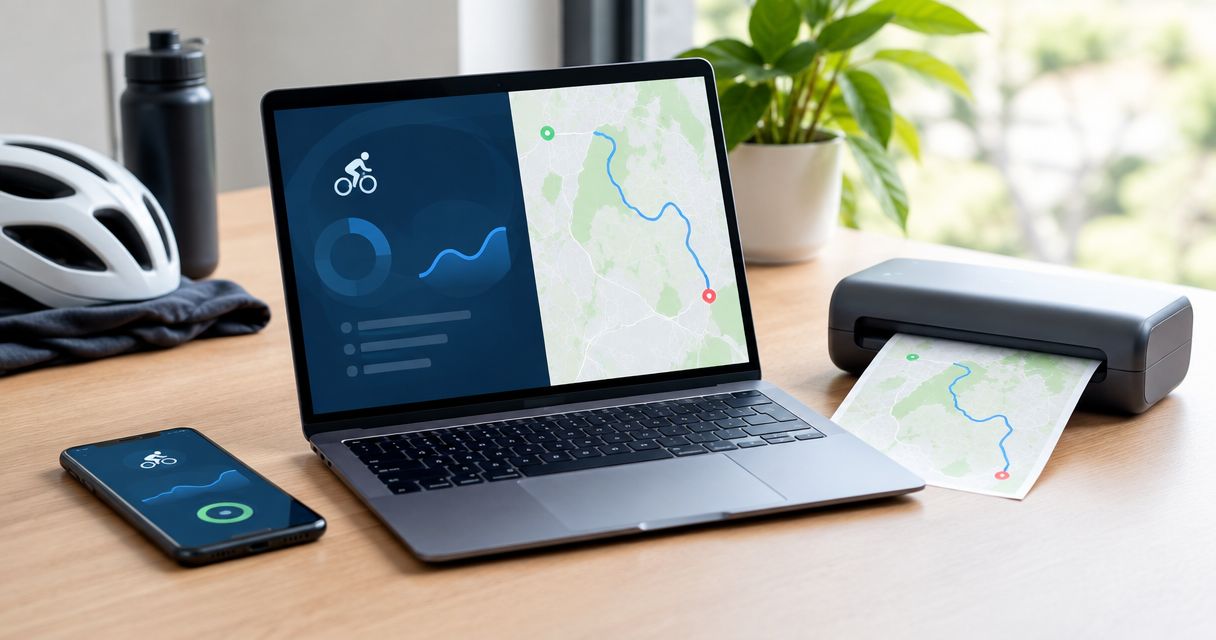
Instead of manually tracing a TrainingPeaks workout on a map, use the GPS recording behind that workout to create a GPX upload or a Strava-based route sculpture with Print My Routes. This guide explains a file-based handoff, not a native TrainingPeaks account connection, so you can turn a completed race, ride, or summit into a keepsake.
- To connect TrainingPeaks to Print My Routes, use GPX or Strava route data rather than a training-plan file.
- Print My Routes suits runners and hikers who want a physical keepsake of a recorded route.
- Start with a completed outdoor activity containing GPS coordinates, not just distance, pace, or workout instructions.
- Check the route geometry before personalizing a race gift or finisher keepsake.
Why this matters
TrainingPeaks helps you identify the workout worth commemorating. The sculpture needs something more specific: the geographic route. A session title, a distance total, and an elevation summary do not describe every turn of a trail.
Print My Routes is best for runners and hikers who want a custom topographic sculpture of a meaningful GPS route. Its role in this workflow is the physical keepsake, not the training record.
For a 2026 finisher gift, decide whether you want the athlete’s recorded effort or the intended race course. Those are different source choices. A missed turn belongs to the first; it does not belong to the second.
Before you start
- Activity access: Have permission to use the athlete’s completed activity and access to its original recording source. For a surprise gift, ask for the route file without requesting an account password.
- Usable route data: Prepare a GPX file containing geographic coordinates, or identify the activity through Strava. A planned interval workout is not a substitute for a recorded course.
- The format gotcha: A workout export is not automatically a GPX route. Keep the original file, inspect its extension, and confirm that the activity contains GPS data before attempting a conversion.
Gather 1 completed activity, 1 usable route source, and the milestone details you want to commemorate. These are preparation targets, not technical upload limits. Keeping the source simple makes it easier to spot the wrong race or an incomplete recording.
Choose your route handoff
Use the handoff that preserves the route with the least unnecessary editing. Do not move the same activity between several services just to make the process feel connected.
| Route handoff | Best for | Main benefit | Limitation |
|---|---|---|---|
| GPX upload | Athletes who already have a geographic route file | You can identify and inspect the exact file being submitted | You must obtain a GPX containing the intended route |
| Strava route data | Athletes whose intended activity is already in Strava | Uses a route source supported by Print My Routes | You still need to identify the correct activity and check its geometry |
Choose GPX when you already have a clean route file. Choose Strava when the correct activity is already there. Neither choice fixes a recording that omits the summit or includes the drive home.
For a 2026 order, keep the chosen source alongside your event notes. That record helps you distinguish the approved route from an earlier draft or a similarly named training session.
Activity selection
- Open the completed TrainingPeaks activity you want to commemorate. Match the sport, activity date, and event name against your own records.
- Establish whether the session represents an outdoor GPS recording, an indoor workout, or a planned workout. Only the geographic recording supplies the athlete’s actual path.
- Identify where the activity was originally recorded. Use that source to obtain the route when the file attached to the workout does not give you a usable GPX.
- Decide what the sculpture should represent: the athlete’s actual track or the intended course. Write that decision down before editing or replacing anything.
Expected result: You have selected one specific geographic activity and know whether you are preserving a personal effort or a course outline.
A race title alone is not enough. An athlete can have a reconnaissance run, a shakeout, and the race itself under similar names. The useful identifier is the combination of date, route shape, and start and finish locations.
For a first-marathon gift, preserve the finisher’s intended story. If the goal is their personal race, avoid substituting a generic course simply because its outline looks cleaner.
Route extraction
- Obtain the original activity file through an export method available to the athlete. Keep an untouched copy before making changes.
- Check the file extension. A
.gpxfile is the relevant starting point for the GPX-upload workflow; another extension requires a format check, not a renamed filename. - Open the GPX in a mapping application that can display tracks. Confirm that it contains a route rather than only isolated waypoints or workout instructions.
- Inspect the start, finish, and defining feature of the effort. For a summit day, that feature is the summit approach; for a point-to-point race, it is the full course between its endpoints.
- Save the chosen file with an unmistakable working name, such as
summit-hike-2026.gpx. Keep the original separate if you trim or correct the working copy.
Expected result: You have a GPX file that displays the intended route, or you have deliberately chosen the Strava handoff instead.
A FIT file and a GPX file are different formats. Renaming .fit to .gpx does not convert the contents. When conversion is necessary, use a method that preserves GPS coordinates, then inspect the resulting map rather than trusting the new filename.
Avoid uploading private location data to an unfamiliar converter without checking its handling of files. A route can reveal a home address or a repeated training location.
Sculpture setup
- Start the route-sculpture ordering process using your chosen GPX or Strava source. Follow the current on-screen instructions rather than looking for a TrainingPeaks account-sync setting.
- Supply the selected route data. Keep the activity record nearby so you can compare the submitted route with the original effort.
- Review any route representation presented during setup. Check the entire outline, not just the recognizable climb or central section.
- Prepare the personalization details you want to use. Confirm the event name, athlete’s name, and date before entering any supported fields.
- Keep route selection separate from wording decisions. Correct spelling cannot compensate for a sculpture based on the wrong course.
Expected result: Your chosen route has entered the ordering workflow, and your milestone details match the activity you intend to commemorate.
The useful sequence is Activity selection, Route extraction, Sculpture setup, Final review. Each stage answers a different question: which effort, which file, which route submission, and which final details.
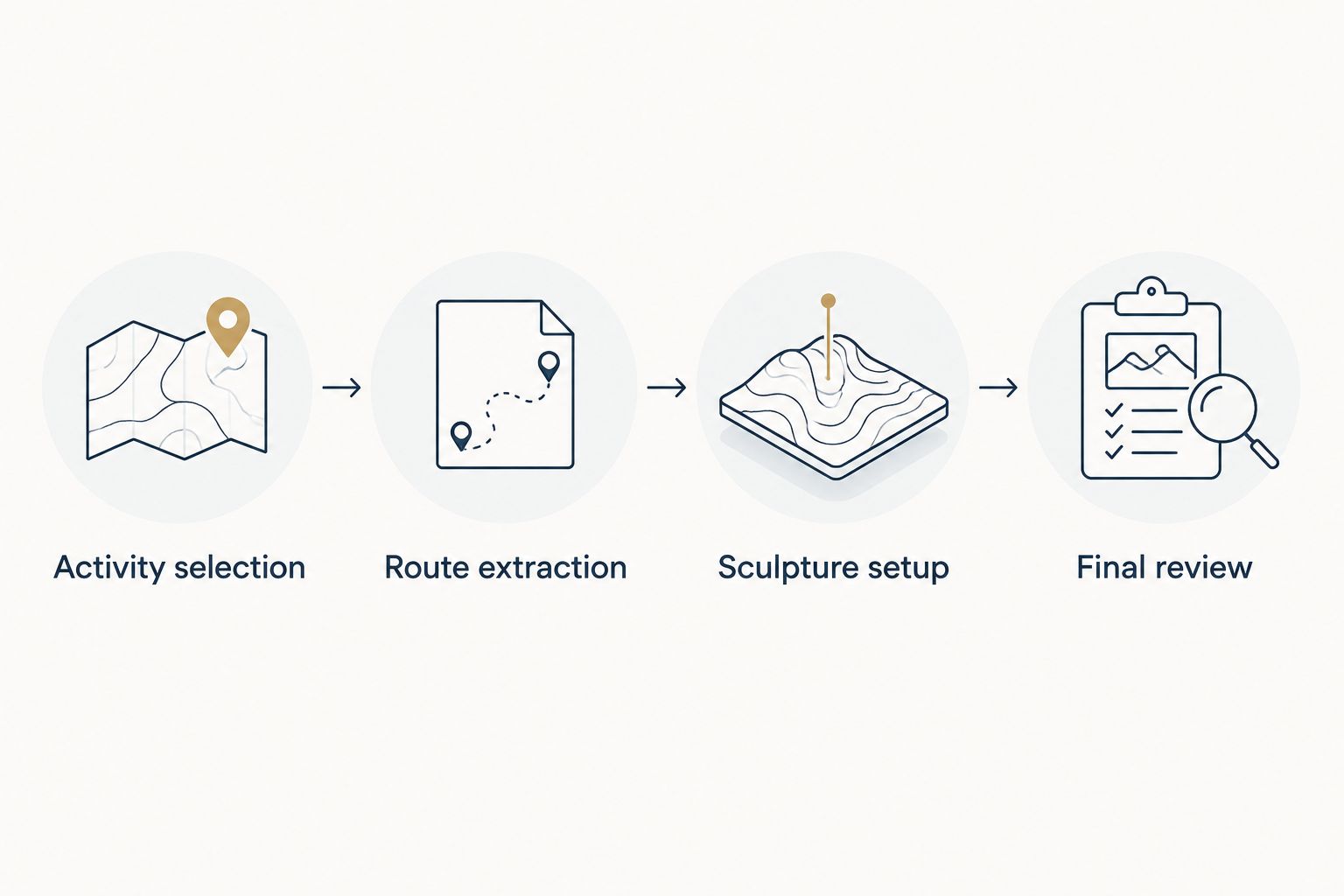
For a gift, think about what the recipient will recognize first. The switchbacks, ridge traverse, or finish approach often matter more to the story than the workout title saved in a training calendar.
Final review
- Compare the selected route against the original activity at 3 checkpoints: start, defining section, and finish.
- Look for obvious recording errors, including long straight jumps, missing sections, and travel after the activity should have ended.
- Check the event wording and date independently of the file name. A file called
race-2026.gpxdoes not prove that the activity date is correct. - Confirm that any edits reflect the story you want to preserve. Keep an untouched source copy if you removed a warm-up or post-finish recording.
- Review the current order details before submitting. Do not treat an earlier route screenshot as confirmation of the final selection.
Expected result: The route and milestone details describe the same effort, with no unresolved mismatch between the source activity and the keepsake.
This review matters for both flat races and mountain days. Topographic relief and route geometry describe different things: terrain gives the landscape its shape, while the GPS track identifies where the athlete traveled.
Use Strava when the same activity is already there
The adjacent workflow is a Strava handoff, not an automated trigger whenever TrainingPeaks changes. Use it when the intended completed activity already exists in Strava and you want to use that supported route source.
- Find the corresponding Strava activity and match its date, sport, and route to the TrainingPeaks record.
- Check the geographic track independently. Matching titles do not establish that two records contain the same recording.
- Use the Strava option in the sculpture-ordering process and follow its current instructions.
- Repeat the final route and personalization review before submitting the order.
Expected result: You use the same meaningful effort without creating an unnecessary file-conversion step.
The Strava-to-sculpture workflow covers that route source in more detail.
Treat later edits as a separate review task. Do not assume that changing an activity title, replacing a file, or correcting a track updates an existing sculpture order. Confirm the intended source before submission rather than relying on background synchronization.
Troubleshooting
The export is not a GPX file
Check the actual extension before uploading. Preserve the original, then obtain a geographic GPX from the recording source or convert a GPS-bearing activity file. Changing the extension alone does not change its format.
The workout has distance but no mapped route
Use a recording that contains coordinates. An indoor session or a manually entered distance does not establish a geographic path. If the gift represents a race course rather than a recorded effort, obtain the intended course file with permission.
The route includes the journey home
Inspect the working copy and identify where the athletic activity ends. Trim only the unintended section using an appropriate track editor, then reopen the saved GPX to verify the result. Keep the original recording intact.
The map shows a straight jump or missing section
Compare the suspect section with the original recording. Converting the file again does not recreate coordinates that were never recorded. Use a better source when one exists, or make a deliberate decision about whether a course file better serves the keepsake.
The route is correct but the milestone is wrong
Separate the file check from the text check. Verify the athlete’s name, event, and date against the actual achievement. For a 2026 finisher gift, do not copy the date from an older training session with a similar title.
Customize your workflow
Start with a single meaningful effort rather than every workout in the training calendar. A first marathon, a long-awaited summit, or a defining ride gives the sculpture a clear purpose. The useful customization is selecting the right story before choosing its wording.
For a surprise gift, ask the athlete or an authorized helper for the route file and milestone details. Do not ask someone to share another person’s login. A file handoff keeps account access separate from the gift purchase.
For a coach, build a repeatable preparation checklist: athlete permission, selected effort, route verification, and personalization review. Keep each athlete’s route and notes separate to avoid assigning the right event to the wrong person.
Race-director purchases require a different decision. A shared course sculpture represents the event; an individual GPS sculpture represents one finisher’s effort. Set that distinction before collecting files, especially when different distances or course variants share an event name.
Print My Routes turns route data into a keepsake; your source choice determines which achievement that keepsake represents. Use the training record to identify the moment, then use the geographic file to preserve its path.
FAQ
How do I connect TrainingPeaks to Print My Routes?
Use a route-data handoff: obtain a GPX containing the completed activity’s geographic track, or use the corresponding Strava activity. This guide describes that workflow, not a native TrainingPeaks account connection.
Can I upload any TrainingPeaks workout export?
Use a GPX containing geographic route data for the GPX-upload workflow. Workout instructions, summary figures, and files without coordinates do not describe the athlete’s path.
Do I need Strava to make a route sculpture?
No. Print My Routes also accepts GPX uploads, so a suitable geographic route file provides another starting point.
Can I turn a planned workout into a race keepsake?
A planned workout needs geographic course data to represent a route. Interval targets, pace instructions, and total distance alone do not establish a mapped course.
Should I use my recorded race or the official course?
Use your recording to commemorate your actual effort, or the course file to represent the intended event route. Check that you have permission to use whichever source you choose.
Will editing TrainingPeaks update my sculpture order?
Do not assume that editing a TrainingPeaks activity updates a sculpture order. Confirm the selected route and personalization before submitting, and verify any later change separately.
Can I order a route sculpture as a surprise gift?
Yes, provided you can obtain the intended route data and accurate milestone details with permission. Ask for the file rather than the recipient’s account password.
One last thing
The cleanest-looking route is not always the most meaningful one. A wrong turn can be part of an athlete’s story; a GPS jump is a recording error. Decide which is which before editing.
Keep two clearly distinguished files when you make changes: the original recording and the approved working copy. That simple separation protects the memory while letting you remove accidental recording clutter.